
How do I add another multicraft user to access my server?
So you want to add a sub-user to access your console or allow a user to access your server files. This is a severe warning from us. If you know the developer or the user your trying to add is a close friend, it is safe to add them. However, if the user you're trying to add is unknown, a known scammer, or an untrusted user from the internet, do not add them at any cost. If you do add any users from the internet. Aquatis is not responsible for any damage caused to your server.
Please select the option below that applies to you. Please send this to the sub-user so their account can be created.
Server Owner
Step 1
Refer your friend to this article and have them scroll down to the user section.
Wait for the other user to create an account, once completed, ask for the username that they used to create the account for the next step.
Step 2
Navigate to the Multicraft panel.
Step 3
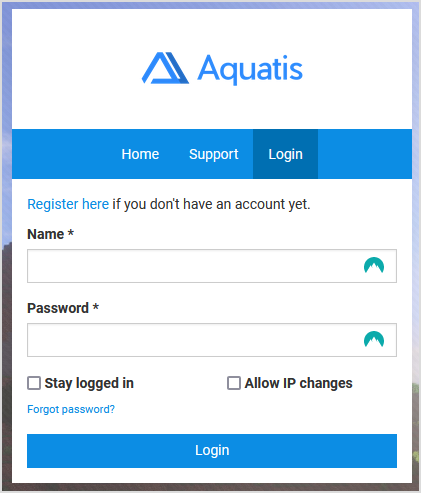
Login to the panel with your credentials.
Step 4
Select the server you want to grant the user permissions for.

Step 5
Select "Advanced > Users", on the left-hand side.

Step 6
Type in the username of the user you want to add, and their username will appear right under.

Step 7
For the FTP Access/FTP Username, the details are below. Set it to any option you prefer.
| No Access | The desired user can't make any modifications to your server files. |
| Read-only | The desired user can only read/view your server files. |
| Full access | The desired user can make any modifications to your server files. (Recommended for TRUSTED Staff & Friends) |
For the Role, the details are below. Set it to any option you prefer.
| Guest |
Can see basic information about a server like online status and number of players |
| User |
Can use chat, view available commands, and use certain cheat functionality is enabled by the server owner |
| Moderator | Can start servers, use the "admin say" command, see the server console, summon/kick/tp players, use the "give" command, and download backups. |
| Super Moderator | Can issue server commands, stop/restart the server and start backups. |
| Administrator | Has full control over all server functions such as managing players, editing configs, etc. |
| Co-Owner | Can assign FTP access to another user. |
| Owner | Can assign co-owner status to other users. |
As soon as you click the option on the drop-down the changes are applied instantly.
Step 8
Once you have added the user permissions. Ask the user to reload the page. Your new user should have access to your server now!
User
Step 1
Navigate to the Multicraft panel.
Step 2
Select "Register here".
Step 3
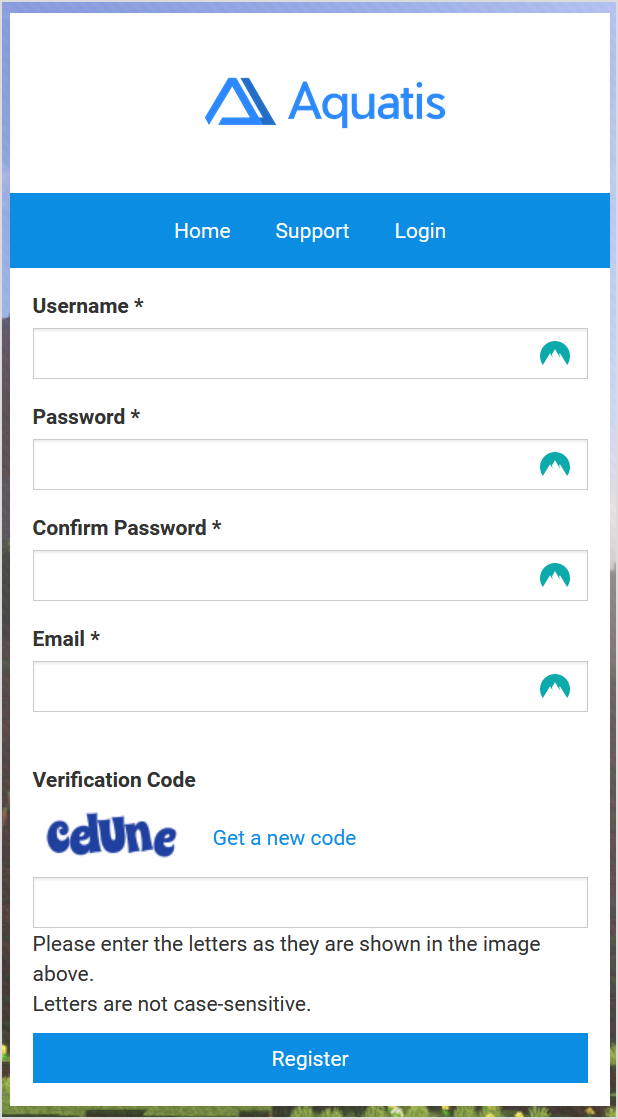
Fill out the information requested on the form. Then select Register.
Let the account owner know that you finished all the steps! Simply close the page, you're done here!