# How do I add another multicraft user to access my server?

So you want to add a sub-user to access your console or allow a user to access your server files. This is a severe warning from us. If you **know** the developer or the user your trying to add is a **close** friend, it is **safe** to add them. **However**, if the user you're trying to add is **unknown**, a **known scammer**, or an **untrusted** user from the internet, **do not add them** at any cost. If you do add any users from the internet. Aquatis is **not responsible** for any **damage caused** to your server.

Please select the option below that applies to you. Please send this to the sub-user so their account can be created.

<details id="bkmrk-server-owner-step-1-"><summary>Server Owner</summary>

##### Step 1

**Refer** your friend to this article and have them scroll down to the user section.

<p class="callout warning">Wait for the other user to create an account, once completed, ask for the username that they used to create the account for the next step.</p>

##### Step 2  


**Navigate** to the [Multicraft ](https://panel.aquatis.host/index.php?r=site/login)panel.

##### Step 3  


**Login** to the panel with your credentials.

[![image.png](https://knowledgebase.aquatis.host/uploads/images/gallery/2022-08/scaled-1680-/eR4L1seh80Ng1Xed-image.png)](https://knowledgebase.aquatis.host/uploads/images/gallery/2022-08/eR4L1seh80Ng1Xed-image.png)
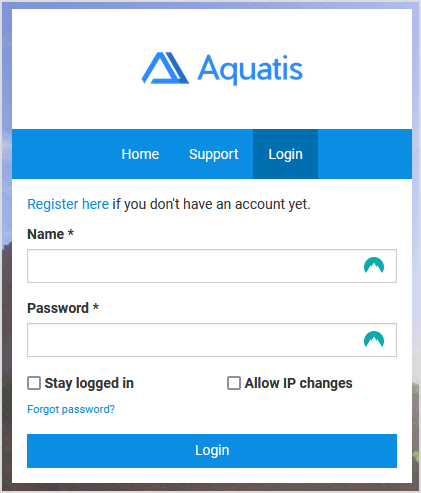
##### Step 4  


**Select** the server you want to grant the user permissions for.

[![image.png](https://knowledgebase.aquatis.host/uploads/images/gallery/2022-08/scaled-1680-/nVuEG5qrXv7o984x-image.png)](https://knowledgebase.aquatis.host/uploads/images/gallery/2022-08/nVuEG5qrXv7o984x-image.png)

##### Step 5  


**Select "**Advanced &gt; Users", on the left-hand side.

![](https://storage.crisp.chat/users/helpdesk/website/f8de15e75bbb7000/image_w1phfr.png)

##### Step 6  


**Type** in the username of the user you want to add, and their username will appear right under.

![](https://storage.crisp.chat/users/helpdesk/website/f8de15e75bbb7000/image_dik3b6.png)

##### Step 7  


For the FTP Access/FTP Username, the details are below. **Set** it to any option you prefer.

<table border="1" style="border-collapse: collapse; width: 100.043%;"><colgroup><col style="width: 14.7641%;"></col><col style="width: 85.2359%;"></col></colgroup><tbody><tr><td>No Access</td><td>The desired user can't make any modifications to your server files.   
</td></tr><tr><td>Read-only</td><td>The desired user can only read/view your server files.</td></tr><tr><td>Full access</td><td>The desired user can make any modifications to your server files. **(Recommended for TRUSTED Staff &amp; Friends)**</td></tr></tbody></table>

For the Role, the details are below. Set it to any option you prefer.

<table border="1" style="border-collapse: collapse; width: 100.043%;"><colgroup><col style="width: 15.9411%;"></col><col style="width: 84.0589%;"></col></colgroup><tbody><tr><td>Guest  
</td><td>Can see basic information about a server like online status and number of players</td></tr><tr><td>User  
</td><td>Can use chat, view available commands, and use certain cheat functionality is enabled by the server owner</td></tr><tr><td>Moderator</td><td>Can start servers, use the "admin say" command, see the server console, summon/kick/tp players, use the "give" command, and download backups.</td></tr><tr><td>Super Moderator</td><td>Can issue server commands, stop/restart the server and start backups.</td></tr><tr><td>Administrator</td><td>Has full control over all server functions such as managing players, editing configs, etc.</td></tr><tr><td>Co-Owner</td><td>Can assign FTP access to another user.</td></tr><tr><td>Owner</td><td>Can assign co-owner status to other users.</td></tr></tbody></table>

<p class="callout info">As soon as you click the option on the drop-down the changes are applied instantly.  
</p>

##### Step 8  


Once you have added the user permissions. Ask the user to reload the page. Your new user should have access to your server now!

</details><details id="bkmrk-user-step-1-navigate"><summary>User</summary>

##### Step 1  


**Navigate** to the [Multicraft ](https://panel.aquatis.host/index.php?r=site/login)panel.

##### Step 2  


**Select** "Register here".

[![image.png](https://knowledgebase.aquatis.host/uploads/images/gallery/2022-08/scaled-1680-/eR4L1seh80Ng1Xed-image.png)](https://knowledgebase.aquatis.host/uploads/images/gallery/2022-08/eR4L1seh80Ng1Xed-image.png)

##### Step 3  


**Fill** out the information requested on the form. Then select **Register**.

[![image.png](https://knowledgebase.aquatis.host/uploads/images/gallery/2022-08/scaled-1680-/3saIMkn3NI6gR8aI-image.png)](https://knowledgebase.aquatis.host/uploads/images/gallery/2022-08/3saIMkn3NI6gR8aI-image.png)

<p class="callout success">Let the account owner know that you finished all the steps! Simply close the page, you're done here!</p>

</details>