
How do I create a manual backup for my VPS?
Step 1
Sign in to the VPS panel.
VPS Panel: https://vps.aquatis.host:4083/

Step 2
Select the VPS you wish to control.

Step 3
On the navigation bar, select the InstallBackups button to view the OperatingBackups Systems available to re-install.menu.

Step 4
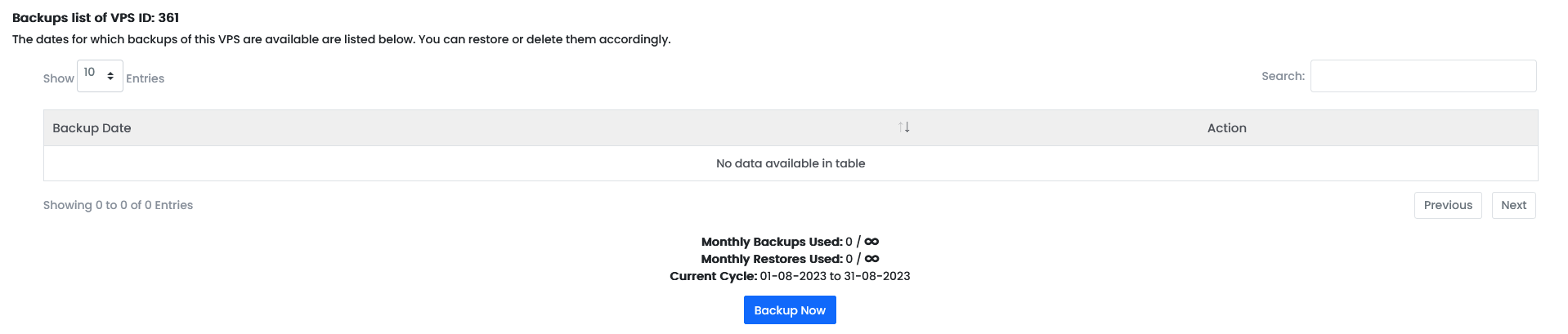
Select the OperatingBackup SystemNow that you wishbutton to re-install.
start the backup process. The system will create a manual backup in the background.
IfIn youthis wantexample, to delete all the files of yourthis VPS anddoes startnot withhave aany cleanbackups slate, you can select the same operating system currently installed on your VPS.yet.
Step 5
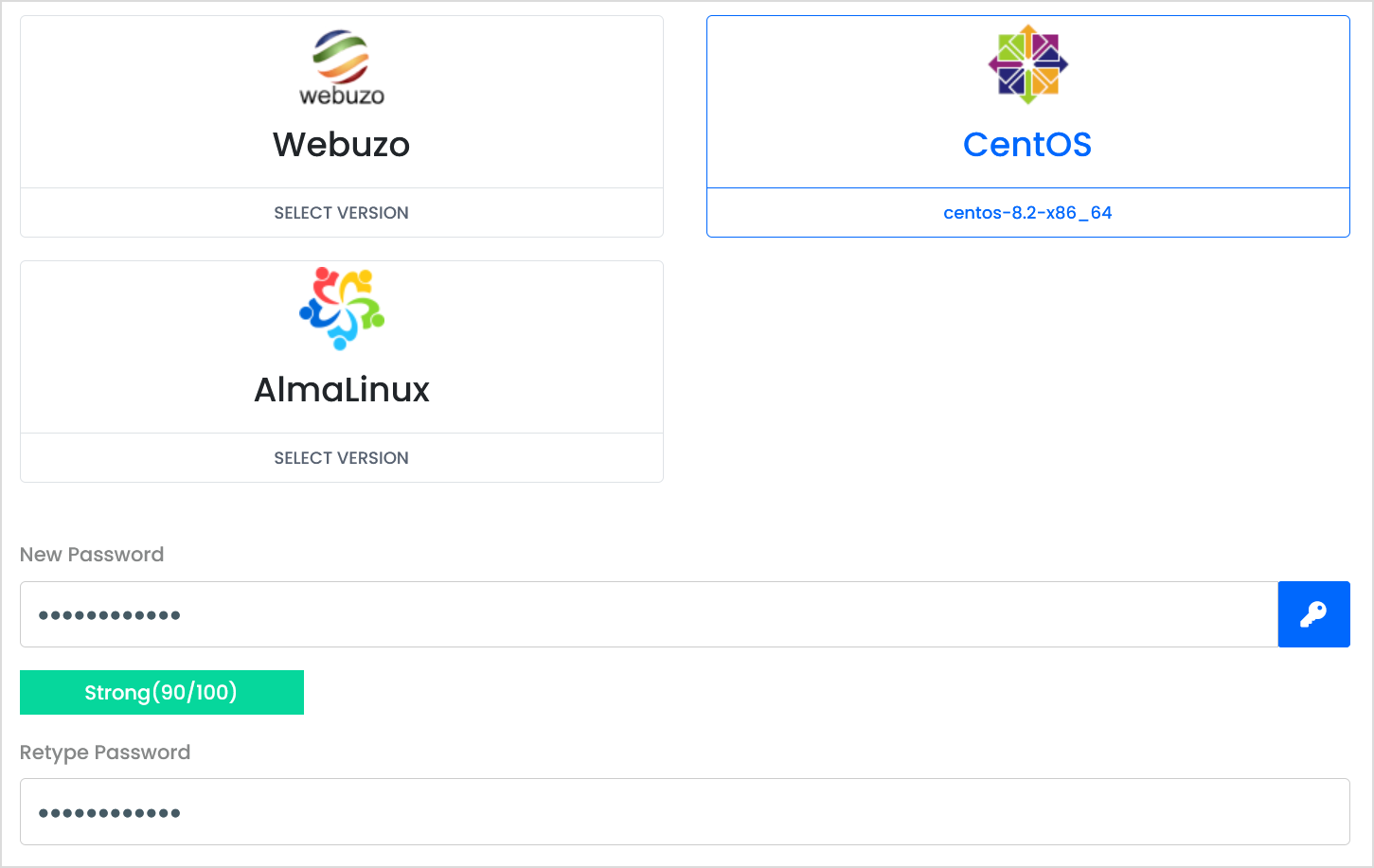
Type in a new password below and retype it as well to confirm it.
Step 6
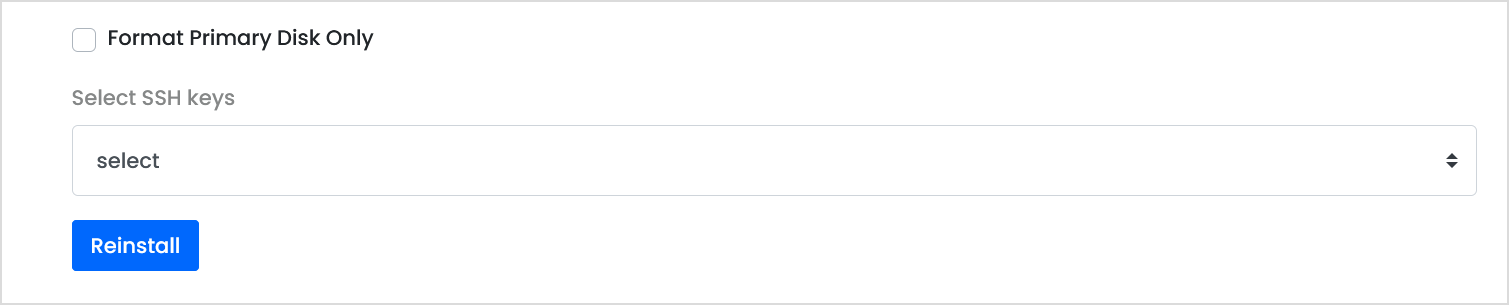
Ignore the Format Primary Disk Only option, If you wish to select SSH keys for the VPS you can re-add them. Select Re-install to initiate the VPS re-install.
Step 7
Confirm that you wish to re-install the VPS operating system.
Once you select ok, the data is lost permanently. Please ensure you keep a backup of your VPS contents.

Step 8
Wait as the VPS re-installs the operating system. Once complete, the server will boot back online.