
How do I add/open a server port on Pterodactyl?
Step 1
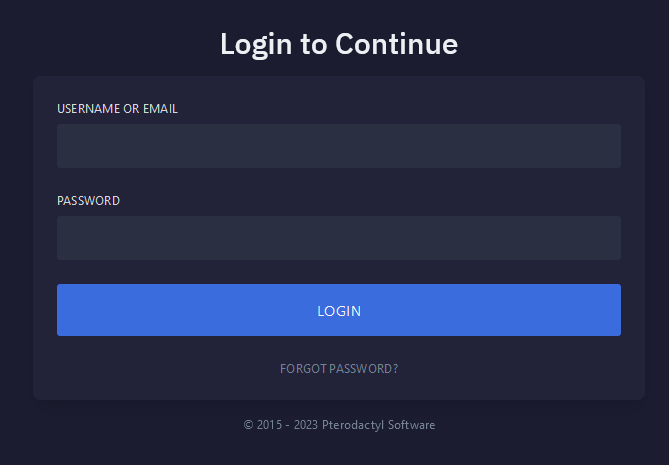
Navigate to Pterodactyl panel's login screen and Login.
Step 2
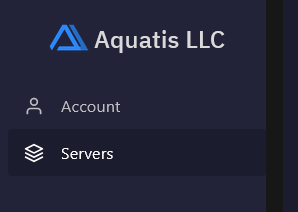
Navigate to the AccountServer section on the left side navigation.
Step 3
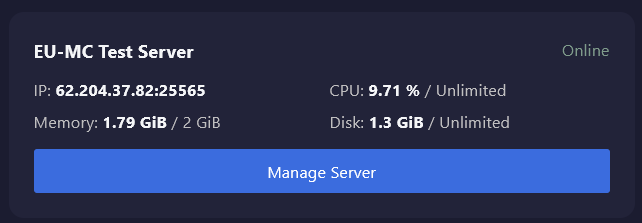
Navigate to the Updateserver Emailyou Addresswish sectionto on the middle of your screen. Enter your new desired email, type in your current password andmanage, select the UpdateManage EmailServer button.
Step 4

Step 5
Select the Create Allocation button to create a new port allocation for your server.

Step 6
Type Notes into the notes box to create a reminder of what you are using that port for.
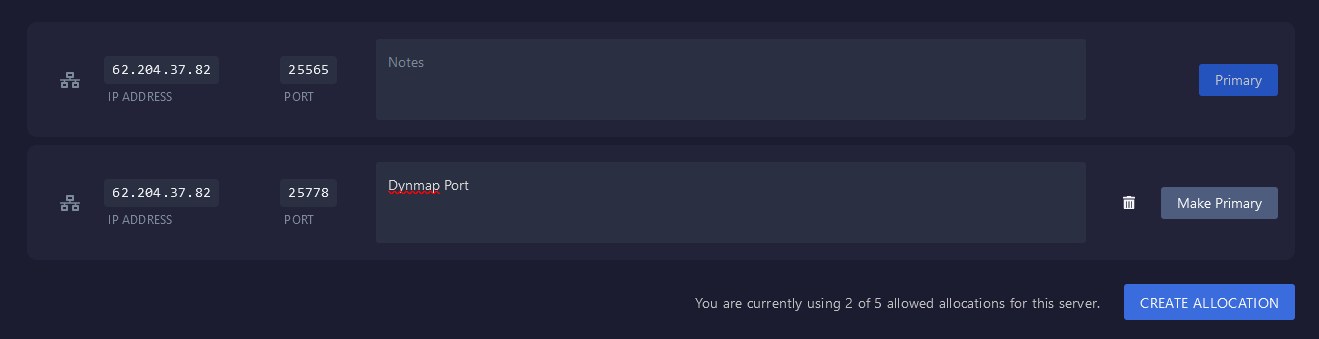
TheYou systemare also able to delete the additional port, or make it the primary port for your server for players to connect with.

Step 7

Step 8
Restart the server with the stop then start button. Upon completion, the ports will applybe the changes and stay on the screen. You will see a visual confirmation.open.
You have completed reading this guide.