
How do I re-install my Operating System for my VPS?
Step 1
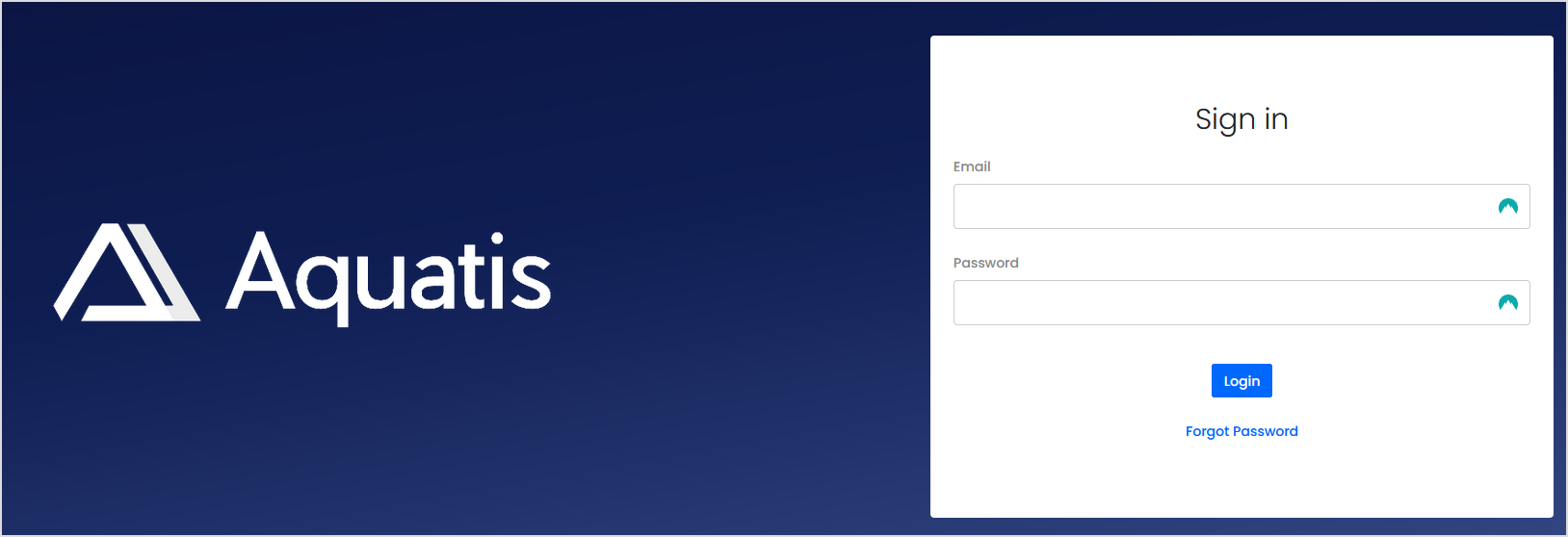
Sign in to the VPS panel.
Budget VPS: https://virtualizor.aquatis.host:4083/
High Ram VPS: https://hr-kvm.aquatis.host:4083/
Step 2
Select the VPS you wish to control.

Step 3
On the navigation bar, select the SettingsInstall button to view the VPSOperating settings.Systems available to re-install.

Step 4
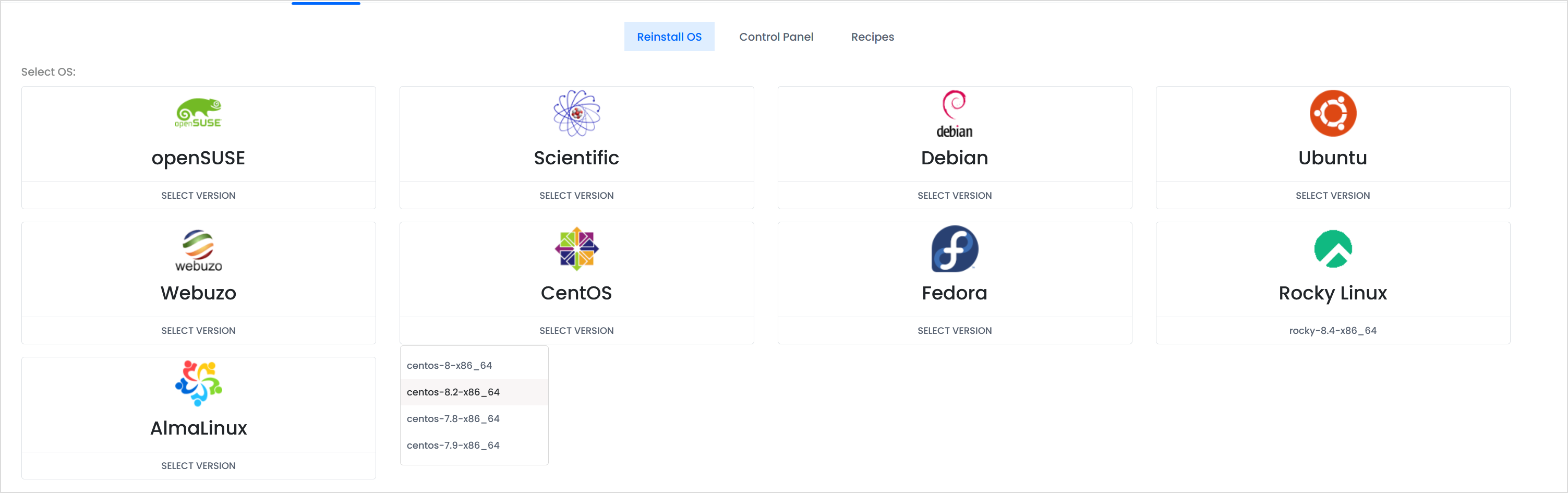
The settings page hasSelect the ChangeOperating HostnameSystem asthat theyou firstwish option.to re-install.
If you want to delete all the files of your VPS and start with a clean slate, you can select the same operating system currently installed on your VPS.
Step 5
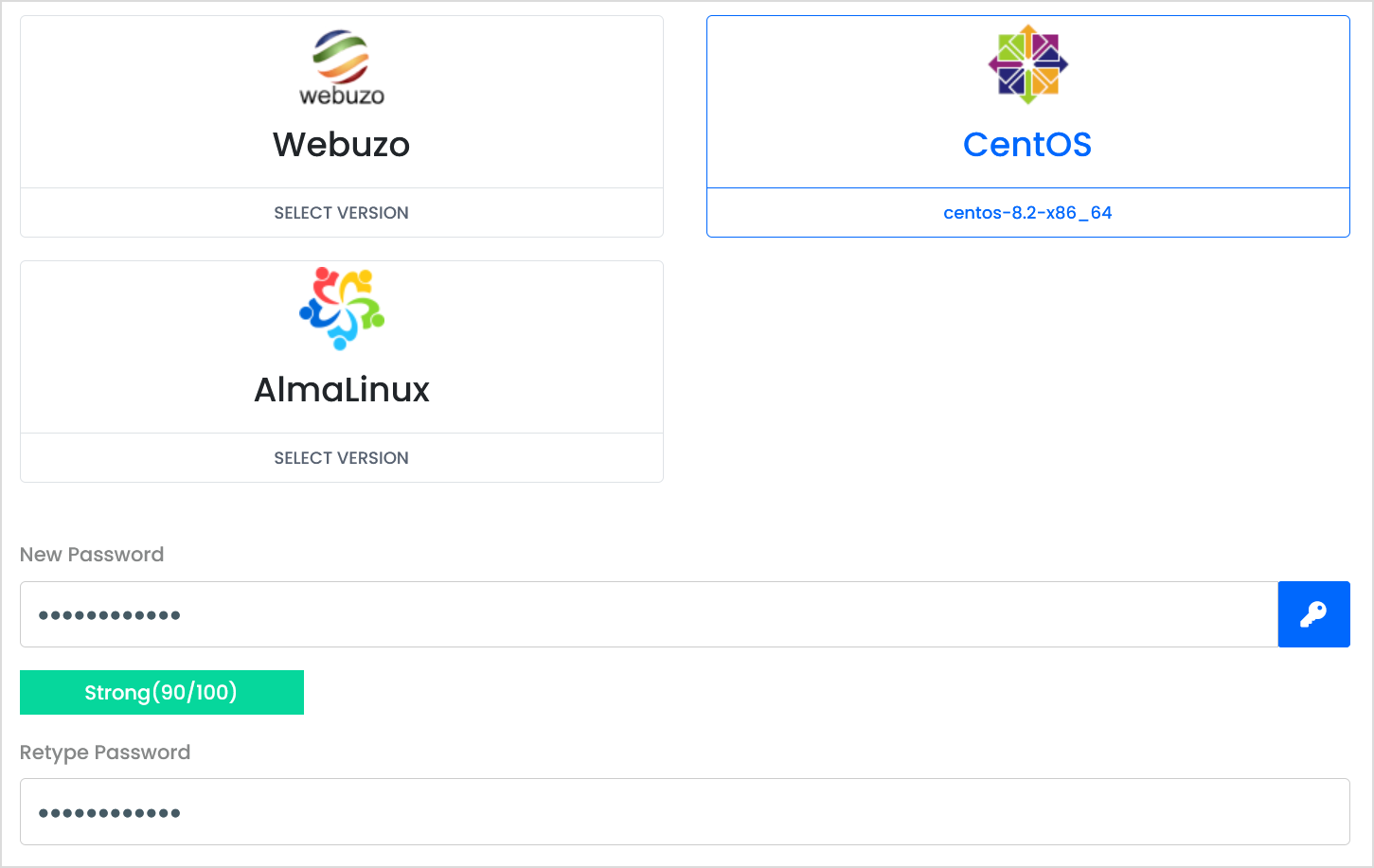
Type in thea new hostnamepassword below and clickretype Changeit Hostname.as well to confirm it.
Step 6
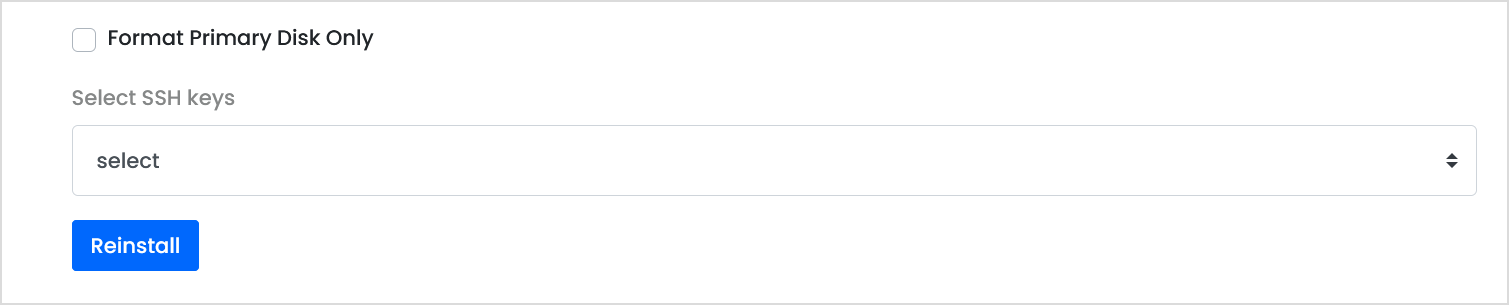
RestartIgnore the Format Primary Disk Only option, If you wish to select SSH keys for the VPS byyou selectingcan there-add them. BlueSelect restartingRe-install optionto on the top right hand of the screen. This will restartinitiate the VPS and apply the new hostname.re-install.
Step 7
Confirm that you wish to re-install the VPS operating system.
Once you select ok, the data is lost permanently. Please ensure you keep a backup of your VPS contents.

Step 8
Wait as the VPS re-installs the operating system. Once complete, the server will boot back online.