
How do create a file system on my VPS's additional mount?
Step 1
Login to your VPS with an SSH tool, in this example we are using Bitvise SSH.
Once signed in, run the following command.
lsblk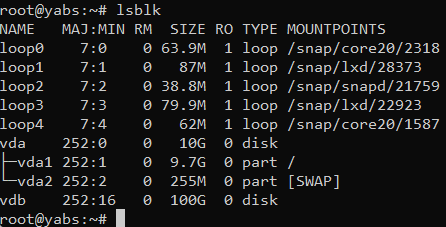
In the command, you will see two disk mounts, one is VDA which is your primary disk mount since its mounted to /. Your additional disk mount is VDB with 100G in size.
Step 2
Run the following command to create a file system on that disk.
mkfs.ext4 /dev/sdb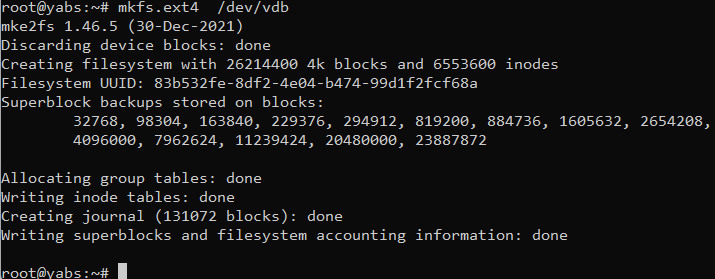
As you see now there is a file system of mkfs.ext4 created on that mount.
Run the following command.
blkid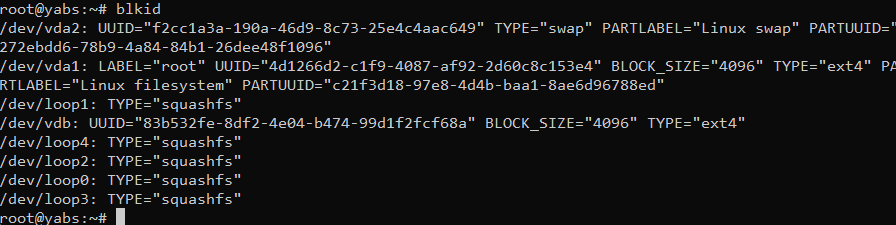
Keep a note of the UUID value of /dev/vdb.
Step 3
Run the following commands to mount the file system to the OS.
mkdir /mnt/data
mount -t ext4 /dev/vdb  /mnt/data
Step 4
Listed below are 2 VPS backups for the VPS we have selected above.

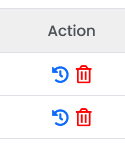
On the left-hand side, it will show the date and time when the backup was created, on the right-hand side are the actions available per backup.
| Name |
Action |
| Restore |
Selecting this will restore the VPS to that mirror. |
| Delete |
Selecting this will delete the VPS mirror permanently. |
Select the restore action for the date and time you want to back up.
Step 5
Select Ok to initiate the restore process in the background.
This can take 1-10 minutes to complete.
This will permanently delete all data on your VPS at the moment and restore all data from the date and time you selected.