
How do I link my website to Cloudflare?
In this guide, you will learn how to link up your website to Cloudflare. Aquatis strongly encourages customers to link their website to Cloudflare as it improves your website and application performance/security. Cloudflare is free.
Step 1
SignNavigate into toCloudflare and select the BillingSign-Up Area.button on the navigation bar.

Step 2
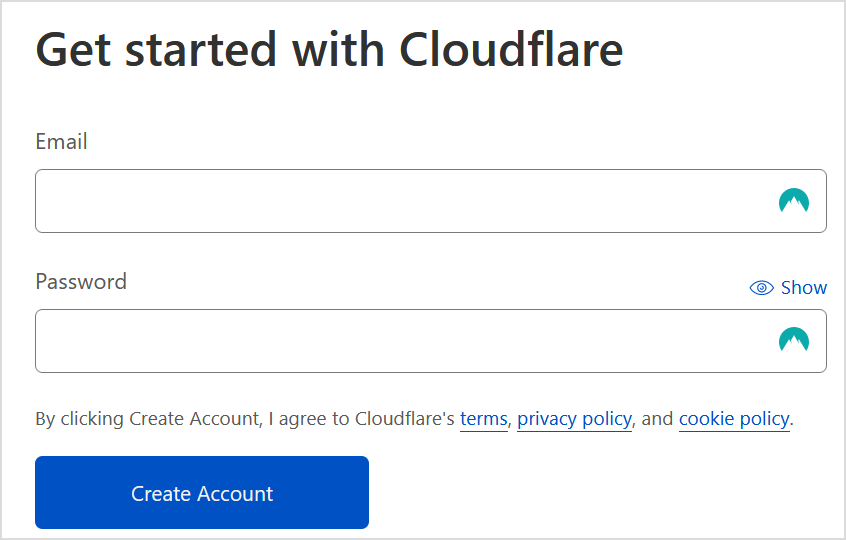
SelectFill in your email and desired password and select the ServicesCreate Account box.
The information you submit on Cloudflare does not need to match your Aquatis account billing information.
Step 3
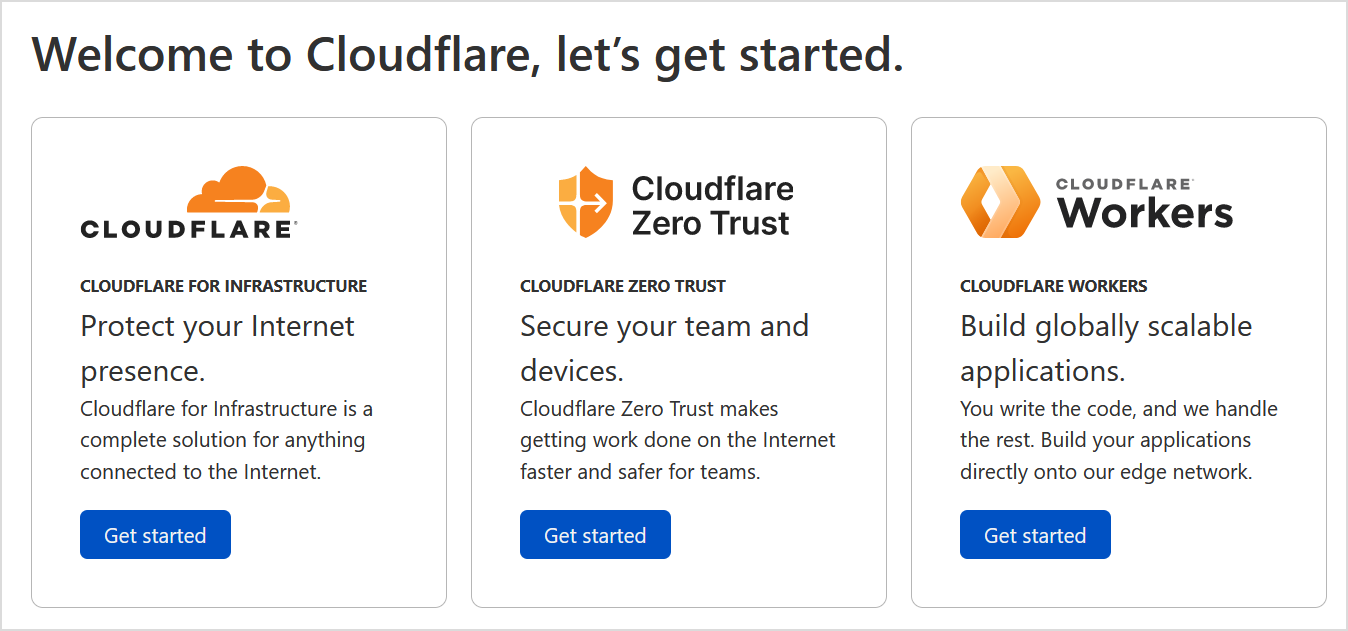
ChangeSelect "Get started" for the viewfirst tooption, ActiveCloudflare for Infrastructure..
Step 4
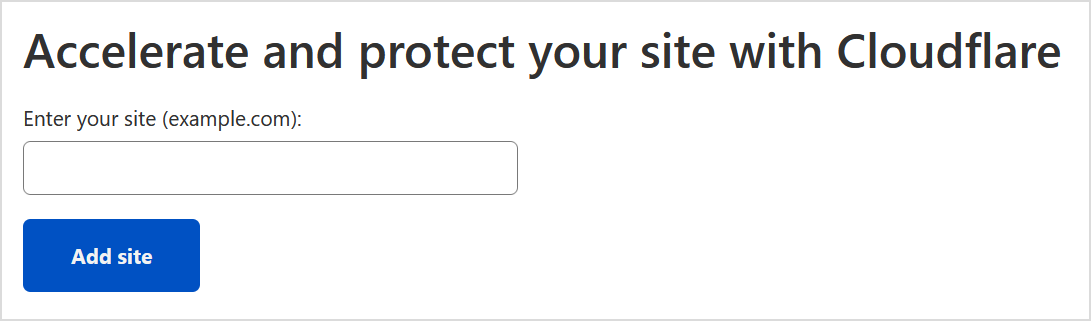
SelectType in the ProductDomain that you would like to cancel.link to Cloudflare.
If your website is 
Step 5
OnSelect the left-handFree sideplan underat Actions,the bottom, then select Request CancellationContinue.
You are free to purchase any plan you want, please note that Aquatis is not affiliated with Cloudflare in terms of support/sales.

Step 6
FillWait inwhile Cloudflare scans for DNS records. Once it completes, it will display a list of DNS records you currently have. Scroll down to the box "Briefly Describe your reasonbottom for Cancellation"now withand theselect purpose Continueof your cancellation..

Step 7
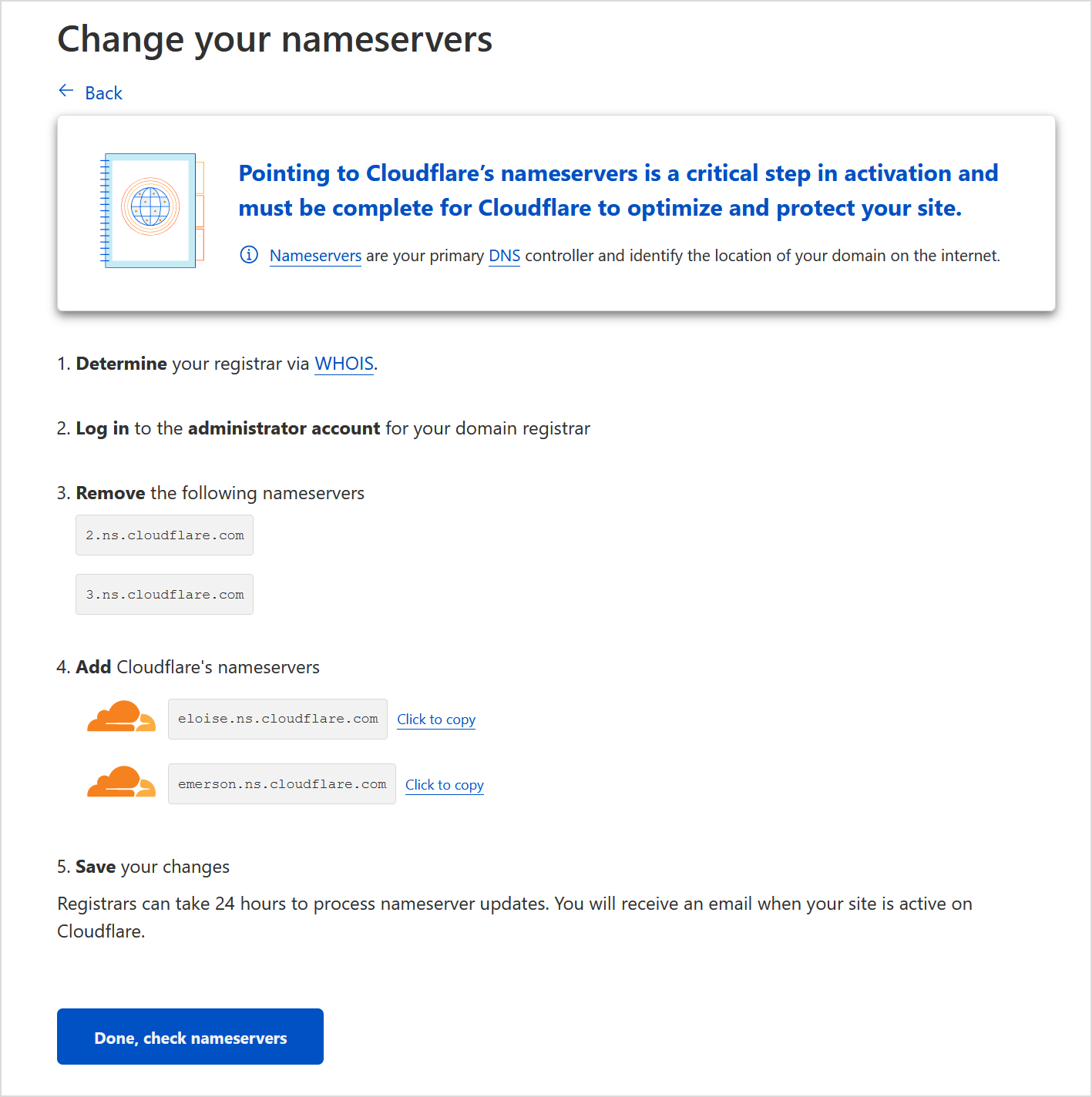
SelectRecord the name servers provided to you from Cloudflare. Login to your domain registrar and change the Cancellationnames of servers to the ones provided by you from Cloudflare. In this example, they are eloise.ns.cloudflare.com & emerson.ns.cloudflare.com. Once you are done, select type"Done, check nameservers".
The name servers provided on your end may/will be different from this example. So be sure to read your screen to verify!
"Immediate"Aquatis Cancellation
Using
asTheyour Immediatedomain optionregistrar? terminatesWe thehave product/servicea link to our article here on thehow sameto daydo around (8:00 PM EST/12:00 AM GMT), regardless of the service's Next Due Date.
so!
"End of Billing Period" Cancellation
The End of Billing Period option terminates the product/service on the service's Next Due Date.
Step 8
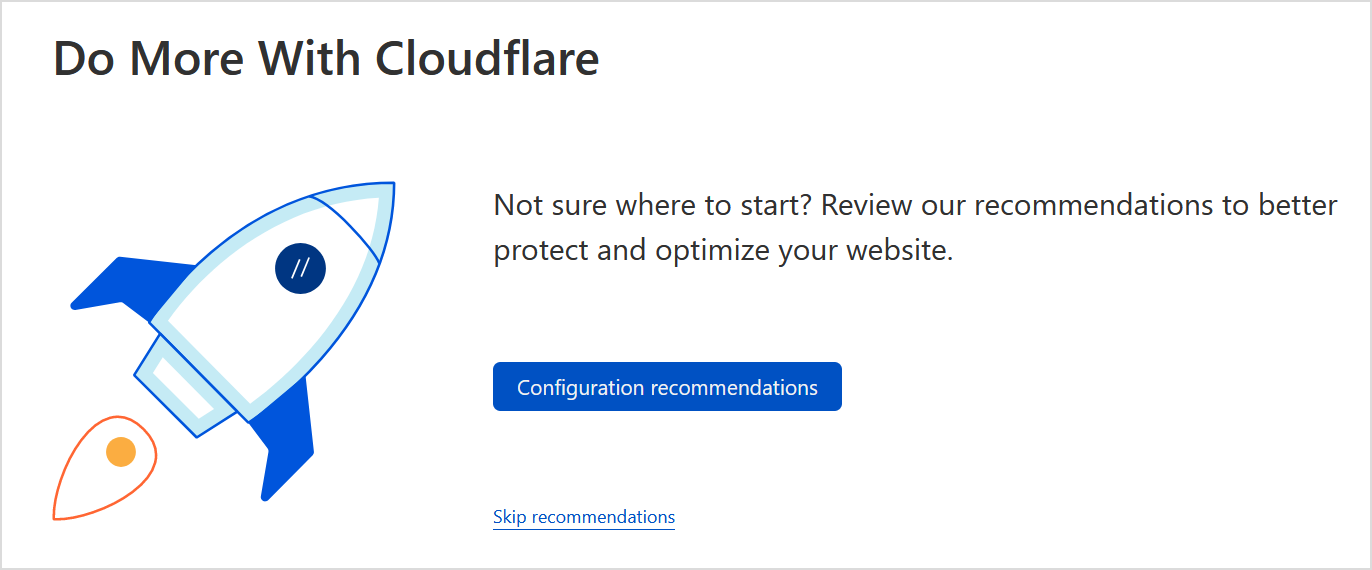
SelectConfigure Submitrecommendations tobased submiton theyour request.
Submitting a Cancellation Request does not automatically give you a refund.preference. If you are withinnot thesure 72-hourwhat refundto perioddo, andselect wantskip arecommendations refundfor on an eligible product, please open a ticket in our billing area.now.
Step 9
Wait 24 hours while your name servers are propagated over to Cloudflare. Once you get an email from Cloudflare saying your website is active. You are all set!