# How do I create a manual backup for my VPS?
##### Step 1
Sign in to the VPS panel.
VPS Panel: [https://vps.aquatis.host:4083/](https://vps.aquatis.host:4083/)
[](https://knowledgebase.aquatis.host/uploads/images/gallery/2022-09/ZLT0LhA6gXVvw4g0-image.png)
##### Step 2
Select the **VPS** you wish to control.
[](https://knowledgebase.aquatis.host/uploads/images/gallery/2022-09/84bDKey279b9vj5u-image.png)
##### Step 3
On the navigation bar, select the **Backups** button to view the Backups menu.
[](https://knowledgebase.aquatis.host/uploads/images/gallery/2023-08/SD5AqXflffixQGfs-image.png)
##### Step 4
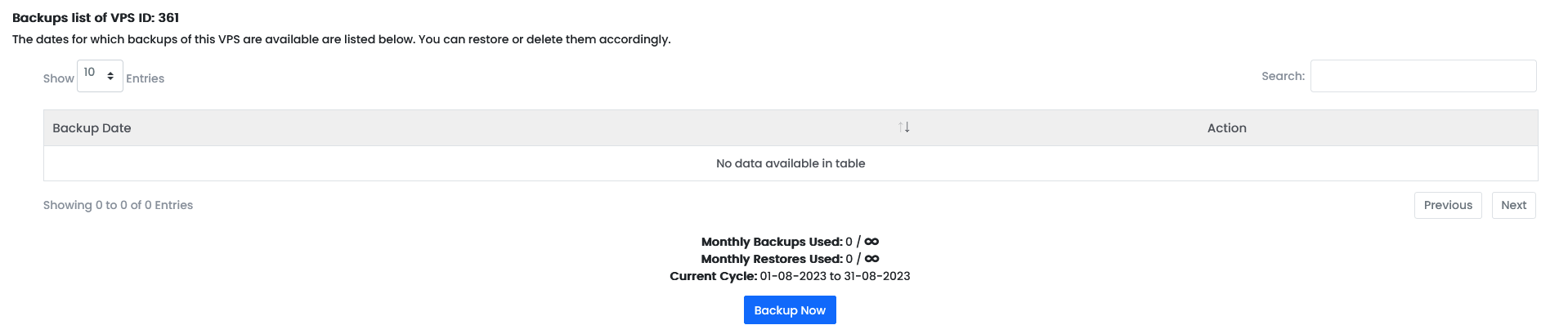
Select the **Backup Now** button to start the backup process.
In this example, this VPS does not have any backups yet.
[](https://knowledgebase.aquatis.host/uploads/images/gallery/2023-08/z01QbNCEktDXvAM4-image.png)
##### Step 5
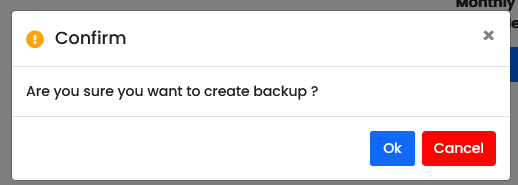
Select **Ok** to initiate the backup process in the background.
This can take 1-10 minutes to complete.
[](https://knowledgebase.aquatis.host/uploads/images/gallery/2023-08/9ns4UAbu78ZTxWdS-image.png)