# VPS Guides

# How do I start/stop/restart VPS?

##### Step 1

Sign in to the VPS panel.

VPS Panel: [https://vps.aquatis.host:4083/](https://vps.aquatis.host:4083/)

[![image.png](https://knowledgebase.aquatis.host/uploads/images/gallery/2022-09/scaled-1680-/ZLT0LhA6gXVvw4g0-image.png)](https://knowledgebase.aquatis.host/uploads/images/gallery/2022-09/ZLT0LhA6gXVvw4g0-image.png)

##### Step 2  


Select the **VPS** you wish to control.

[![image.png](https://knowledgebase.aquatis.host/uploads/images/gallery/2022-09/scaled-1680-/84bDKey279b9vj5u-image.png)](https://knowledgebase.aquatis.host/uploads/images/gallery/2022-09/84bDKey279b9vj5u-image.png)

##### Step 3

On the top right **select** the button of the action you wish to perform.

[![image.png](https://knowledgebase.aquatis.host/uploads/images/gallery/2022-09/scaled-1680-/x2vs1yfkRSFfkg7a-image.png)](https://knowledgebase.aquatis.host/uploads/images/gallery/2022-09/x2vs1yfkRSFfkg7a-image.png)

<table border="1" id="bkmrk-button-action-start%2F" style="border-collapse: collapse; width: 100%; height: 178.8px;"><colgroup><col style="width: 22.2485%;"></col><col style="width: 77.7515%;"></col></colgroup><tbody><tr style="height: 29.8px;"><td class="align-center" style="height: 29.8px;">**Button**  
</td><td style="height: 29.8px;">**Action**  
</td></tr><tr style="height: 29.8px;"><td class="align-center" style="height: 29.8px;">**<span style="color: rgb(126, 140, 141);">Start/Stop the VPS</span>**  
</td><td style="height: 29.8px;">This will start the VPS if it's powered off and will stop the VPS if it's powered on.  
</td></tr><tr style="height: 29.8px;"><td class="align-center" style="height: 29.8px;">**<span style="color: rgb(53, 152, 219);">Restart the VPS</span>**  
</td><td style="height: 29.8px;">This will turn off the VPS and turn it back on right after.  
</td></tr><tr style="height: 29.8px;"><td class="align-center" style="height: 29.8px;">**<span style="color: rgb(224, 62, 45);">Poweroff the VPS</span>**  
</td><td style="height: 29.8px;">This will power off the VPS and not automatically turn it back on.  
</td></tr><tr style="height: 29.8px;"><td class="align-center" style="height: 29.8px;">**Connect to VPS via SSH**  
</td><td style="height: 29.8px;">This button would allow you to connect to the VPS with an online SSH session.  
</td></tr><tr style="height: 29.8px;"><td class="align-center" style="height: 29.8px;">**Connect to VPS via VNC**</td><td style="height: 29.8px;">This button would allow you to connect to the VPS with an online VNC session.</td></tr></tbody></table>

# How do I change the hostname of my VPS?

##### Step 1

Sign in to the VPS panel.

VPS Panel: [https://vps.aquatis.host:4083/](https://vps.aquatis.host:4083/)

[![image.png](https://knowledgebase.aquatis.host/uploads/images/gallery/2022-09/scaled-1680-/ZLT0LhA6gXVvw4g0-image.png)](https://knowledgebase.aquatis.host/uploads/images/gallery/2022-09/ZLT0LhA6gXVvw4g0-image.png)

##### Step 2  


Select the **VPS** you wish to control.

[![image.png](https://knowledgebase.aquatis.host/uploads/images/gallery/2022-09/scaled-1680-/84bDKey279b9vj5u-image.png)](https://knowledgebase.aquatis.host/uploads/images/gallery/2022-09/84bDKey279b9vj5u-image.png)

##### Step 3

On the navigation bar, select the **Settings** button to view the VPS settings.

[![image.png](https://knowledgebase.aquatis.host/uploads/images/gallery/2022-09/scaled-1680-/FL62g3k2Em1tJuVG-image.png)](https://knowledgebase.aquatis.host/uploads/images/gallery/2022-09/FL62g3k2Em1tJuVG-image.png)

##### Step 4  


The settings page has the **Change Hostname** as the first option.

[![image.png](https://knowledgebase.aquatis.host/uploads/images/gallery/2022-09/scaled-1680-/QelnGm8CQdRZGYkf-image.png)](https://knowledgebase.aquatis.host/uploads/images/gallery/2022-09/QelnGm8CQdRZGYkf-image.png)

##### Step 5  


Type in the new hostname and click **Change Hostname**.

[![image.png](https://knowledgebase.aquatis.host/uploads/images/gallery/2022-09/scaled-1680-/McFRqz9f6kILqB6E-image.png)](https://knowledgebase.aquatis.host/uploads/images/gallery/2022-09/McFRqz9f6kILqB6E-image.png)

##### Step 6  


Restart the VPS by selecting the **Blue** restarting option on the top right hand of the screen. This will restart the VPS and apply the new hostname.

[![image.png](https://knowledgebase.aquatis.host/uploads/images/gallery/2022-09/scaled-1680-/x2vs1yfkRSFfkg7a-image.png)](https://knowledgebase.aquatis.host/uploads/images/gallery/2022-09/x2vs1yfkRSFfkg7a-image.png)

# How do I re-install my Operating System for my VPS?

##### Step 1

Sign in to the VPS panel.

VPS Panel: [https://vps.aquatis.host:4083/](https://vps.aquatis.host:4083/)

[![image.png](https://knowledgebase.aquatis.host/uploads/images/gallery/2022-09/scaled-1680-/ZLT0LhA6gXVvw4g0-image.png)](https://knowledgebase.aquatis.host/uploads/images/gallery/2022-09/ZLT0LhA6gXVvw4g0-image.png)

##### Step 2  


Select the **VPS** you wish to control.

[![image.png](https://knowledgebase.aquatis.host/uploads/images/gallery/2022-09/scaled-1680-/84bDKey279b9vj5u-image.png)](https://knowledgebase.aquatis.host/uploads/images/gallery/2022-09/84bDKey279b9vj5u-image.png)

##### Step 3

On the navigation bar, select the **Install** button to view the Operating Systems available to re-install.

[![image.png](https://knowledgebase.aquatis.host/uploads/images/gallery/2022-09/scaled-1680-/AoUe93xQewqSi8oj-image.png)](https://knowledgebase.aquatis.host/uploads/images/gallery/2022-09/AoUe93xQewqSi8oj-image.png)

##### Step 4  


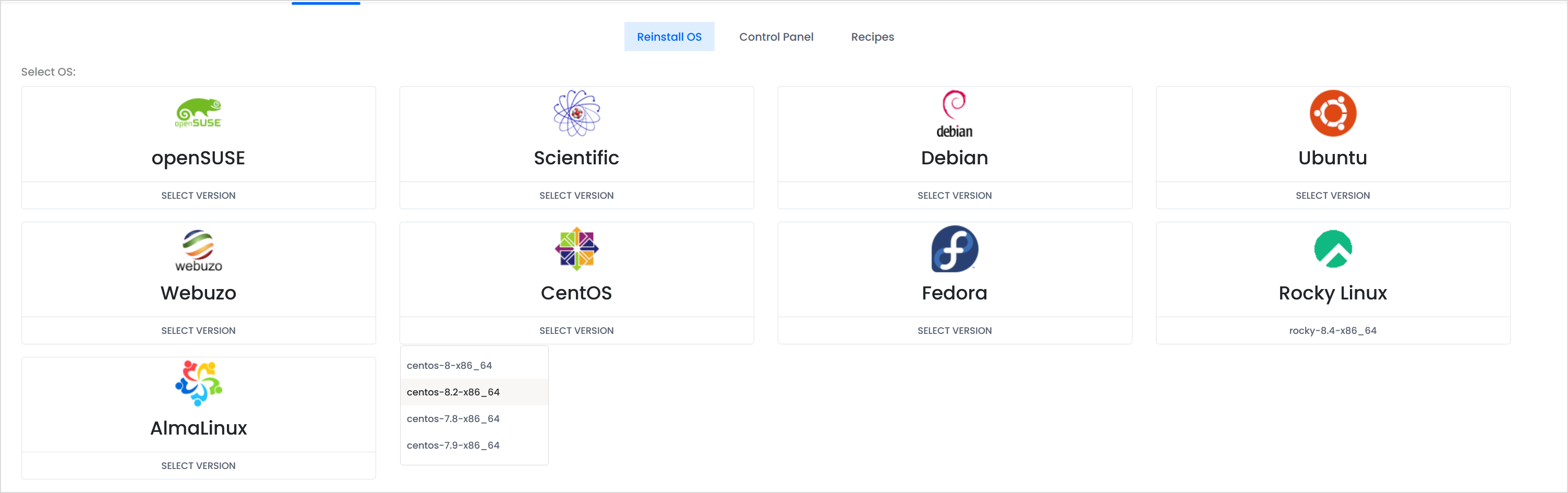
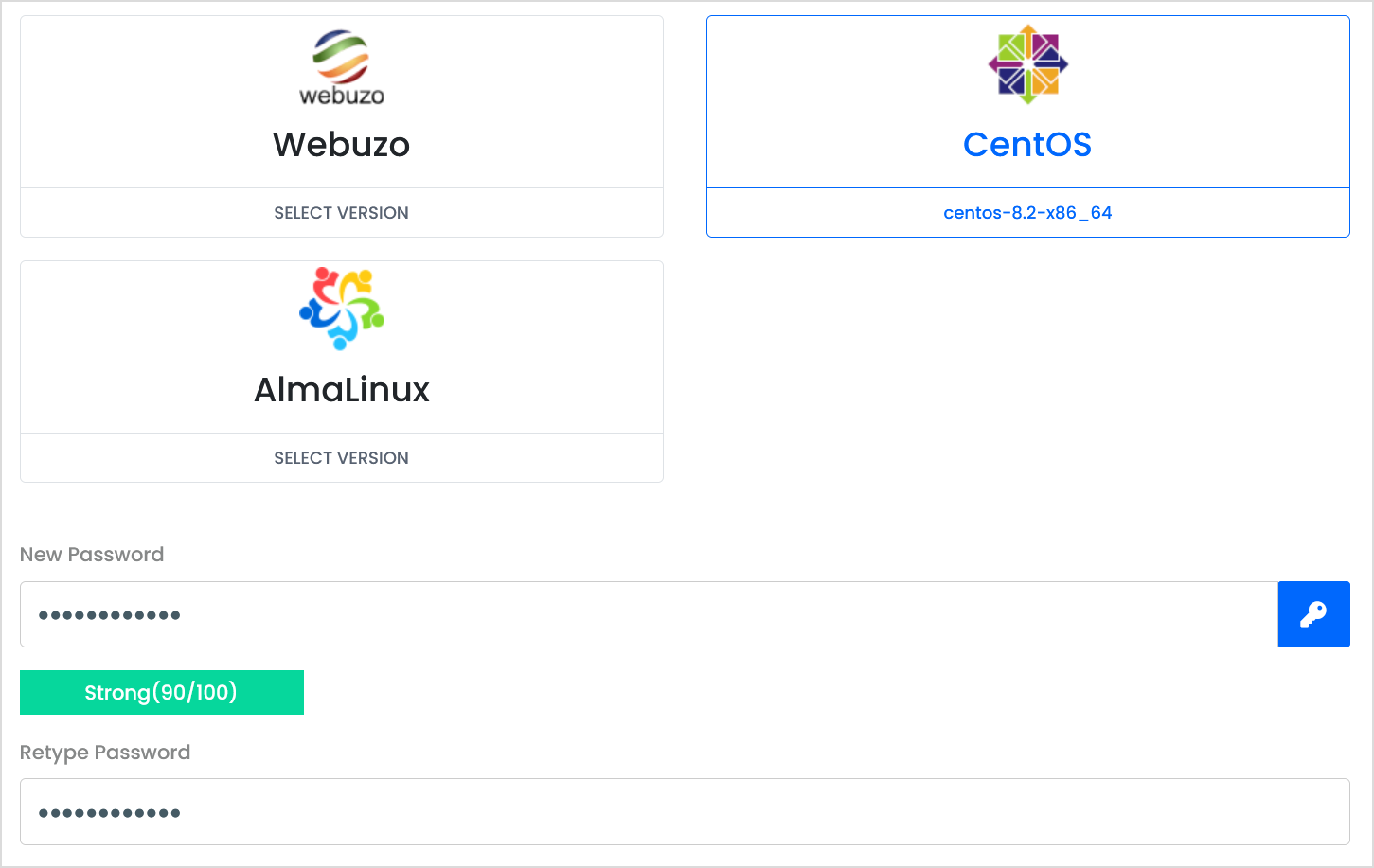
Select the **Operating System** that you wish to re-install.

<p class="callout info">If you want to delete all the files of your VPS and start with a clean slate, you can select the **<span style="text-decoration: underline;">same</span>** operating system currently installed on your VPS.</p>

[![image.png](https://knowledgebase.aquatis.host/uploads/images/gallery/2022-09/scaled-1680-/n8glUkNYOyxzHQWQ-image.png)](https://knowledgebase.aquatis.host/uploads/images/gallery/2022-09/n8glUkNYOyxzHQWQ-image.png)

##### Step 5  


Type in a **new** password below and retype it as well to confirm it.

[![image.png](https://knowledgebase.aquatis.host/uploads/images/gallery/2022-09/scaled-1680-/Gj8HsAQmv2P6xVqo-image.png)](https://knowledgebase.aquatis.host/uploads/images/gallery/2022-09/Gj8HsAQmv2P6xVqo-image.png)
##### Step 6  


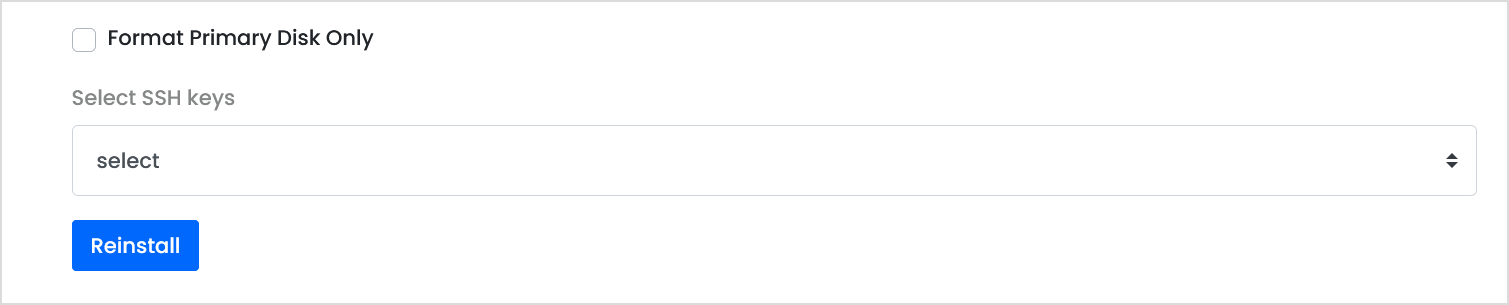
**Ignore** the Format Primary Disk Only option, If you wish to select SSH keys for the VPS you can re-add them. **Select** Re-install to initiate the VPS re-install.

[![image.png](https://knowledgebase.aquatis.host/uploads/images/gallery/2022-09/scaled-1680-/easckbeCUxSPF6dZ-image.png)](https://knowledgebase.aquatis.host/uploads/images/gallery/2022-09/easckbeCUxSPF6dZ-image.png)
##### Step 7  


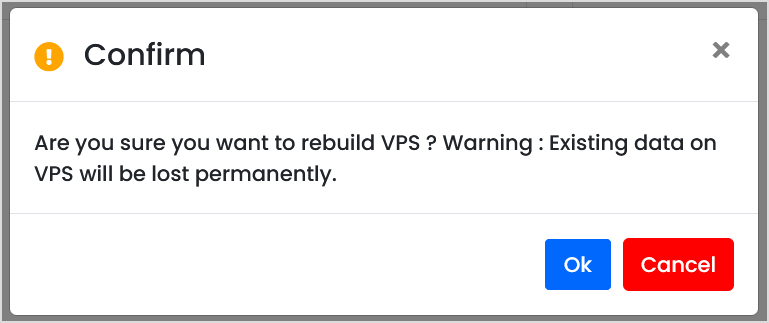
**Confirm** that you wish to re-install the VPS operating system.

<p class="callout danger">Once you select ok, the data is **lost permanently**. Please ensure you keep a backup of your VPS contents.</p>

[![image.png](https://knowledgebase.aquatis.host/uploads/images/gallery/2022-09/scaled-1680-/xN1pHNwQS9mKPfZI-image.png)](https://knowledgebase.aquatis.host/uploads/images/gallery/2022-09/xN1pHNwQS9mKPfZI-image.png)

##### Step 8  


**Wait** as the VPS re-installs the operating system. Once complete, the server will boot back online.

# How do I change the password of my VPS?

##### Step 1

Sign in to the VPS panel.

VPS Panel: [https://vps.aquatis.host:4083/](https://vps.aquatis.host:4083/)

[![image.png](https://knowledgebase.aquatis.host/uploads/images/gallery/2022-09/scaled-1680-/ZLT0LhA6gXVvw4g0-image.png)](https://knowledgebase.aquatis.host/uploads/images/gallery/2022-09/ZLT0LhA6gXVvw4g0-image.png)
##### Step 2  


Select the **VPS** you wish to control.

[![image.png](https://knowledgebase.aquatis.host/uploads/images/gallery/2022-09/scaled-1680-/84bDKey279b9vj5u-image.png)](https://knowledgebase.aquatis.host/uploads/images/gallery/2022-09/84bDKey279b9vj5u-image.png)

##### Step 3

On the navigation bar, select the **Settings** button to view the VPS settings.

[![image.png](https://knowledgebase.aquatis.host/uploads/images/gallery/2022-09/scaled-1680-/FL62g3k2Em1tJuVG-image.png)](https://knowledgebase.aquatis.host/uploads/images/gallery/2022-09/FL62g3k2Em1tJuVG-image.png)

##### Step 4  


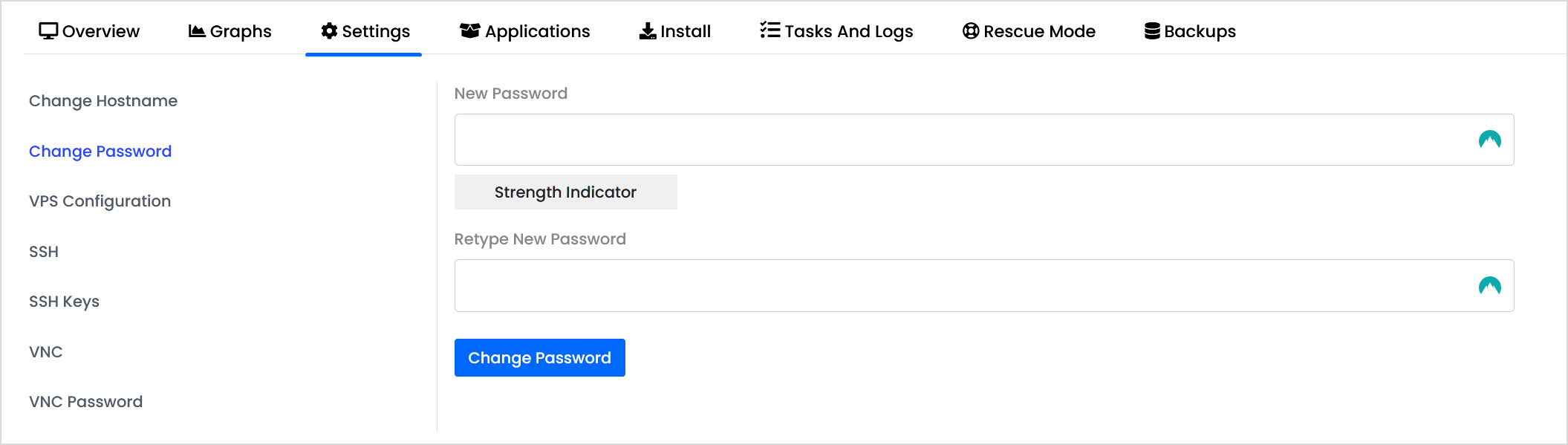
**Select "**Change Password" on the left-hand side.

[![image.png](https://knowledgebase.aquatis.host/uploads/images/gallery/2022-09/scaled-1680-/IuMIY7BJzssoLx0M-image.png)](https://knowledgebase.aquatis.host/uploads/images/gallery/2022-09/IuMIY7BJzssoLx0M-image.png)
##### Step 5  


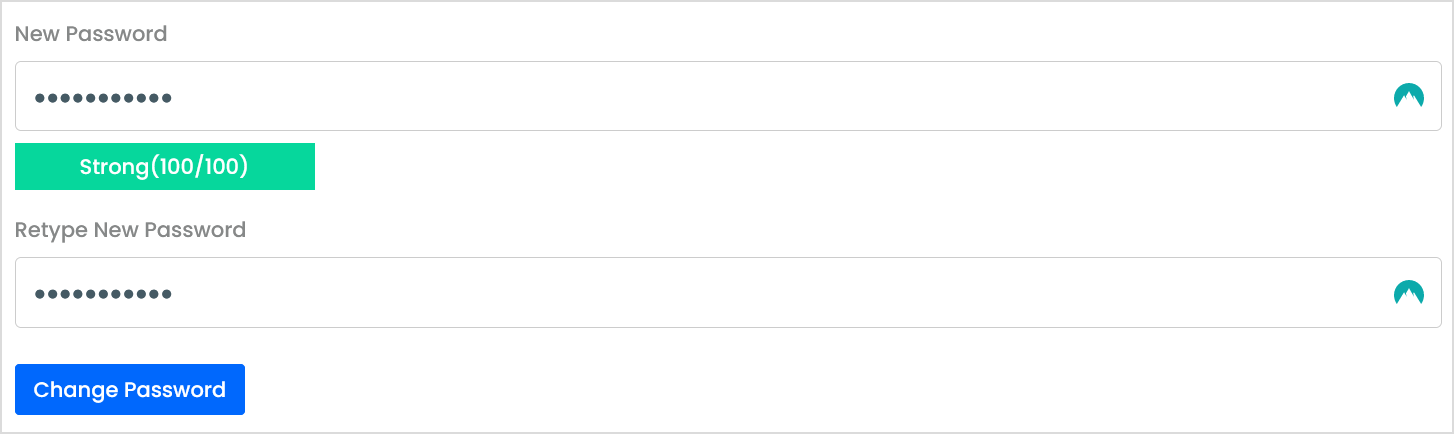
Type in the new password in both boxes, then select **Change Password**.

[![image.png](https://knowledgebase.aquatis.host/uploads/images/gallery/2022-09/scaled-1680-/2CBy1JC19UYYl8v3-image.png)](https://knowledgebase.aquatis.host/uploads/images/gallery/2022-09/2CBy1JC19UYYl8v3-image.png)
##### Step 6  


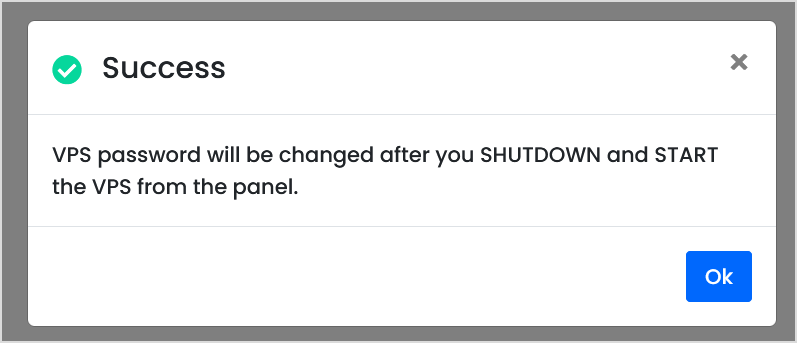
**Shutdown &amp; Start** the VPS for the password to take effect.

[![image.png](https://knowledgebase.aquatis.host/uploads/images/gallery/2022-09/scaled-1680-/M1vYnOxVJIWj21ZE-image.png)](https://knowledgebase.aquatis.host/uploads/images/gallery/2022-09/M1vYnOxVJIWj21ZE-image.png)
# How do I view the backups of my VPS?

<p class="callout warning">VPS Backups are currently only provided with High Ram KVM VPSs.</p>

##### Step 1

Sign in to the VPS panel.  
  
VPS Panel: [https://vps.aquatis.host:4083/](https://vps.aquatis.host:4083/)

[![image.png](https://knowledgebase.aquatis.host/uploads/images/gallery/2022-09/scaled-1680-/ZLT0LhA6gXVvw4g0-image.png)](https://knowledgebase.aquatis.host/uploads/images/gallery/2022-09/ZLT0LhA6gXVvw4g0-image.png)

##### Step 2  


Select the **VPS** you wish to control.

[![image.png](https://knowledgebase.aquatis.host/uploads/images/gallery/2022-09/scaled-1680-/84bDKey279b9vj5u-image.png)](https://knowledgebase.aquatis.host/uploads/images/gallery/2022-09/84bDKey279b9vj5u-image.png)

##### Step 3

On the navigation bar, select the **Backups** button to view the VPS backups.

[![image.png](https://knowledgebase.aquatis.host/uploads/images/gallery/2022-09/scaled-1680-/RXmWrwQI1pl7HDff-image.png)](https://knowledgebase.aquatis.host/uploads/images/gallery/2022-09/RXmWrwQI1pl7HDff-image.png)

Listed below will be the backups currently stored. This will show you all of the options currently available to you.

[![image.png](https://knowledgebase.aquatis.host/uploads/images/gallery/2022-09/scaled-1680-/xm8WyJKbfJBmY8Be-image.png)](https://knowledgebase.aquatis.host/uploads/images/gallery/2022-09/xm8WyJKbfJBmY8Be-image.png)
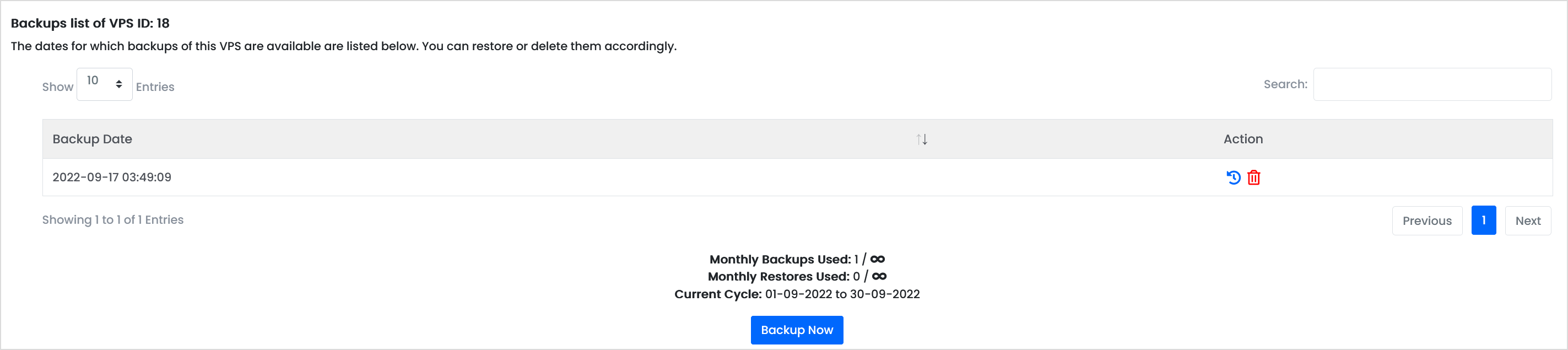
Listed in the table will be all the backups that are currently stored. Below are two actions.

[![image.png](https://knowledgebase.aquatis.host/uploads/images/gallery/2022-09/scaled-1680-/HOGNxIqkdVAHKv77-image.png)](https://knowledgebase.aquatis.host/uploads/images/gallery/2022-09/HOGNxIqkdVAHKv77-image.png)

<table border="1" id="bkmrk-action-action-defini" style="border-collapse: collapse; width: 100%;"><colgroup><col style="width: 9.76652%;"></col><col style="width: 90.2335%;"></col></colgroup><tbody><tr><td class="align-center">**Action**</td><td>**Action Definition**   
</td></tr><tr><td class="align-center"><span style="color: rgb(53, 152, 219);">**Restore**</span>  
</td><td>Selecting this will restore this backup to the VPS. This will delete data on the VPS.  
</td></tr><tr><td class="align-center">**<span style="color: rgb(224, 62, 45);">Delete</span>**  
</td><td>This will delete the backup from the system, doing this will be unrecoverable.</td></tr></tbody></table>

##### Step 4  


To create a manual backup, **select** "Backup Now" to manually backup your VPS.

[![image.png](https://knowledgebase.aquatis.host/uploads/images/gallery/2022-09/scaled-1680-/R9K7VPfvaDOvv0f6-image.png)](https://knowledgebase.aquatis.host/uploads/images/gallery/2022-09/R9K7VPfvaDOvv0f6-image.png)

# How do I view the IP Address of my VPS?

##### Step 1

Sign in to the VPS panel.  
  
VPS Panel: [https://vps.aquatis.host:4083/](https://vps.aquatis.host:4083/)

[![image.png](https://knowledgebase.aquatis.host/uploads/images/gallery/2022-09/scaled-1680-/ZLT0LhA6gXVvw4g0-image.png)](https://knowledgebase.aquatis.host/uploads/images/gallery/2022-09/ZLT0LhA6gXVvw4g0-image.png)

##### Step 2  


Select the **VPS** you wish to view the IP settings for.

[![image.png](https://knowledgebase.aquatis.host/uploads/images/gallery/2022-12/scaled-1680-/pLKAipQOapRGKw8t-image.png)](https://knowledgebase.aquatis.host/uploads/images/gallery/2022-12/pLKAipQOapRGKw8t-image.png)

##### Step 3

Under the hostname will be your **IPv4 Address** that is assigned to your VPS.

[![image.png](https://knowledgebase.aquatis.host/uploads/images/gallery/2022-12/scaled-1680-/2x5jlJCadQLGPmLL-image.png)](https://knowledgebase.aquatis.host/uploads/images/gallery/2022-12/2x5jlJCadQLGPmLL-image.png)

To view the **IPv6 Address**, hover the mouse over the black box next to the IPv4 address to see additional addresses assigned to your VPS.

[![image.png](https://knowledgebase.aquatis.host/uploads/images/gallery/2022-12/scaled-1680-/PfY0p8D9xhJVfTFf-image.png)](https://knowledgebase.aquatis.host/uploads/images/gallery/2022-12/PfY0p8D9xhJVfTFf-image.png)

<p class="callout success">That's it! You now fully know how to view your VPS server's IPv4/IPv6 Address.</p>

# How do I create a manual backup for my VPS?

##### Step 1

Sign in to the VPS panel.

VPS Panel: [https://vps.aquatis.host:4083/](https://vps.aquatis.host:4083/)

[![image.png](https://knowledgebase.aquatis.host/uploads/images/gallery/2022-09/scaled-1680-/ZLT0LhA6gXVvw4g0-image.png)](https://knowledgebase.aquatis.host/uploads/images/gallery/2022-09/ZLT0LhA6gXVvw4g0-image.png)

##### Step 2  


Select the **VPS** you wish to control.

[![image.png](https://knowledgebase.aquatis.host/uploads/images/gallery/2022-09/scaled-1680-/84bDKey279b9vj5u-image.png)](https://knowledgebase.aquatis.host/uploads/images/gallery/2022-09/84bDKey279b9vj5u-image.png)

##### Step 3

On the navigation bar, select the **Backups** button to view the Backups menu.

[![image.png](https://knowledgebase.aquatis.host/uploads/images/gallery/2023-08/scaled-1680-/SD5AqXflffixQGfs-image.png)](https://knowledgebase.aquatis.host/uploads/images/gallery/2023-08/SD5AqXflffixQGfs-image.png)

##### Step 4  


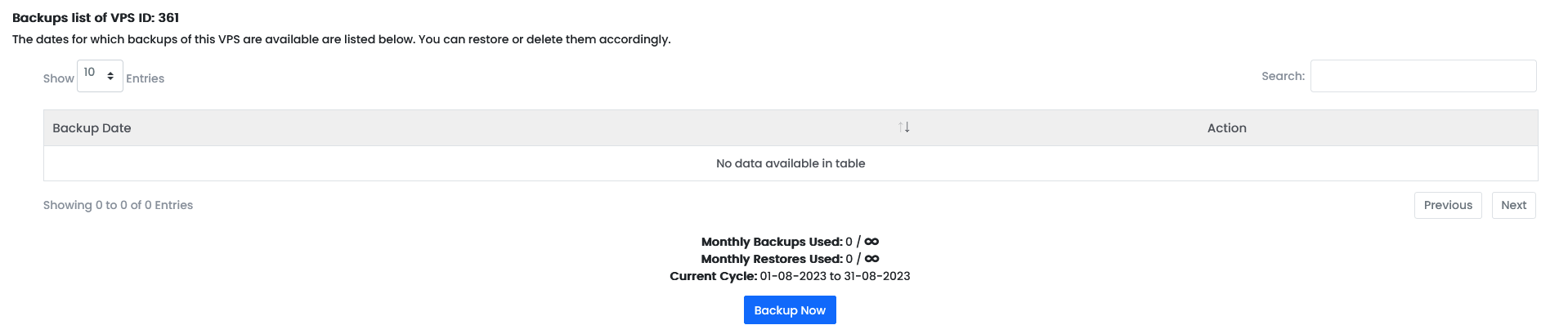
Select the **Backup Now** button to start the backup process.

<p class="callout warning">In this example, this VPS does not have any backups yet.</p>

[![image.png](https://knowledgebase.aquatis.host/uploads/images/gallery/2023-08/scaled-1680-/z01QbNCEktDXvAM4-image.png)](https://knowledgebase.aquatis.host/uploads/images/gallery/2023-08/z01QbNCEktDXvAM4-image.png)

##### Step 5  


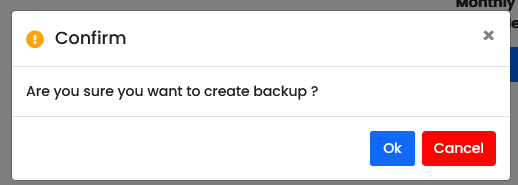
Select **Ok** to initiate the backup process in the background.

<p class="callout warning">This can take 1-10 minutes to complete.  
</p>

[![image.png](https://knowledgebase.aquatis.host/uploads/images/gallery/2023-08/scaled-1680-/9ns4UAbu78ZTxWdS-image.png)](https://knowledgebase.aquatis.host/uploads/images/gallery/2023-08/9ns4UAbu78ZTxWdS-image.png)

# How do I restore a backup for my VPS?

##### Step 1

Sign in to the VPS panel.

VPS Panel: [https://vps.aquatis.host:4083/](https://vps.aquatis.host:4083/)

[![image.png](https://knowledgebase.aquatis.host/uploads/images/gallery/2022-09/scaled-1680-/ZLT0LhA6gXVvw4g0-image.png)](https://knowledgebase.aquatis.host/uploads/images/gallery/2022-09/ZLT0LhA6gXVvw4g0-image.png)

##### Step 2  


Select the **VPS** you wish to control.

[![image.png](https://knowledgebase.aquatis.host/uploads/images/gallery/2022-09/scaled-1680-/84bDKey279b9vj5u-image.png)](https://knowledgebase.aquatis.host/uploads/images/gallery/2022-09/84bDKey279b9vj5u-image.png)

##### Step 3

On the navigation bar, select the **Backups** button to view the Backups menu.

[![image.png](https://knowledgebase.aquatis.host/uploads/images/gallery/2023-08/scaled-1680-/SD5AqXflffixQGfs-image.png)](https://knowledgebase.aquatis.host/uploads/images/gallery/2023-08/SD5AqXflffixQGfs-image.png)

##### Step 4  


Listed below are 2 VPS backups for the VPS we have selected above.

[![image.png](https://knowledgebase.aquatis.host/uploads/images/gallery/2023-08/scaled-1680-/1b4goEkTMqcxn2xa-image.png)](https://knowledgebase.aquatis.host/uploads/images/gallery/2023-08/1b4goEkTMqcxn2xa-image.png)

On the left-hand side, it will show the date and time when the backup was created, on the right-hand side are the actions available per backup.

[![image.png](https://knowledgebase.aquatis.host/uploads/images/gallery/2023-08/scaled-1680-/laKZGrEJpkejdE6R-image.png)](https://knowledgebase.aquatis.host/uploads/images/gallery/2023-08/laKZGrEJpkejdE6R-image.png)
<table border="1" id="bkmrk-name-action-restore-" style="border-collapse: collapse; width: 100%; height: 89.4px;"><colgroup><col style="width: 17.8045%;"></col><col style="width: 82.1955%;"></col></colgroup><tbody><tr style="height: 29.8px;"><td class="align-center" style="height: 29.8px;">**Name**  
</td><td class="align-center" style="height: 29.8px;">**Action**  
</td></tr><tr style="height: 29.8px;"><td class="align-center" style="height: 29.8px;">**<span style="color: rgb(53, 152, 219);">Restore</span>**  
</td><td class="align-center" style="height: 29.8px;">Selecting this will restore the VPS to that mirror.  
</td></tr><tr style="height: 29.8px;"><td class="align-center" style="height: 29.8px;">**<span style="color: rgb(224, 62, 45);">Delete</span>**  
</td><td class="align-center" style="height: 29.8px;">Selecting this will delete the VPS mirror permanently.</td></tr></tbody></table>

**Select** the restore action for the date and time you want to back up.

##### Step 5  


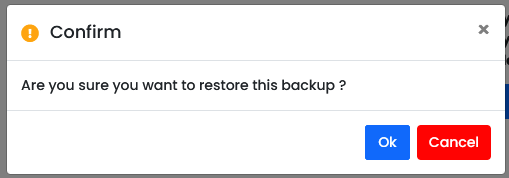
Select **Ok** to initiate the restore process in the background.

<p class="callout warning">This can take 1-10 minutes to complete.</p>

<p class="callout danger">This will permanently delete all data on your VPS at the moment and restore all data from the date and time you selected.</p>

[![image.png](https://knowledgebase.aquatis.host/uploads/images/gallery/2023-08/scaled-1680-/HDvGWiJNhmRKpy9l-image.png)](https://knowledgebase.aquatis.host/uploads/images/gallery/2023-08/HDvGWiJNhmRKpy9l-image.png)

# How do create a file system on my VPS's additional mount?

##### Step 1

Login to your VPS with an SSH tool, in this example we are using [Bitvise SSH](https://www.bitvise.com/ssh-client-download).

Once signed in, run the following command.

```bash
lsblk
```

[![image.png](https://knowledgebase.aquatis.host/uploads/images/gallery/2024-06/scaled-1680-/gEckm55NRRfbn9j3-image.png)](https://knowledgebase.aquatis.host/uploads/images/gallery/2024-06/gEckm55NRRfbn9j3-image.png)
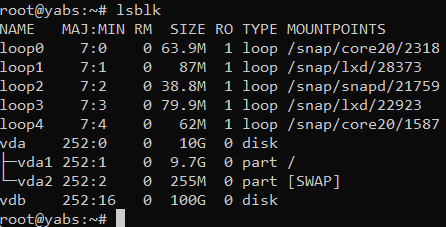
In the command, you will see two disk mounts, one is VDA which is your primary disk mount since it's mounted to /. Your additional disk mount is VDB with 100G in size.  
  
**/dev/vdb** is our mount.

##### Step 2  


Run the following command to create a file system on that disk.

```bash
mkfs.ext4  /dev/vdb
```

[![image.png](https://knowledgebase.aquatis.host/uploads/images/gallery/2024-06/scaled-1680-/t0zK8yzc4qBVDKYu-image.png)](https://knowledgebase.aquatis.host/uploads/images/gallery/2024-06/t0zK8yzc4qBVDKYu-image.png)
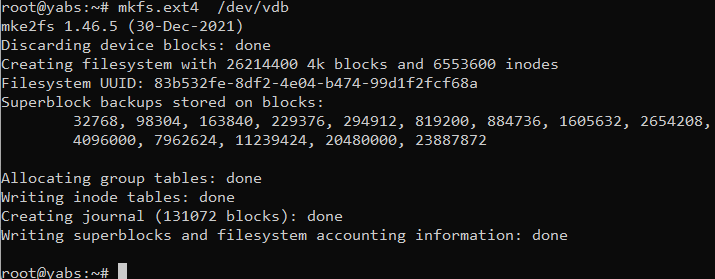
As you see now there is a file system of mkfs.ext4 created on that mount.

##### Step 3

Run the following commands to mount the file system to the OS. You can change the value of data to whatever you'd like.

<p class="callout warning">You can change the /mnt/data folder to /mount or /data or whatever folder you'd like. This is just an example.</p>

```bash
mkdir /mnt/data
mount -t ext4 /dev/vdb  /mnt/data
df -h
```

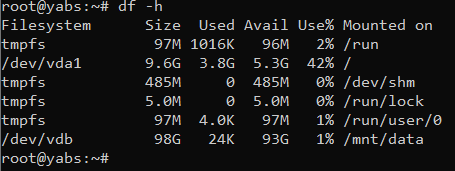
<p class="callout info">Line 1 makes the directory. Line 2 makes the mount, mounting the drive /dev/vdb to the folder /mnt/data. Line 3 returns what your system appears like with the new file system</p>

Upon completion, you will see the new usable mount where you can store all your data now.

[![image.png](https://knowledgebase.aquatis.host/uploads/images/gallery/2024-06/scaled-1680-/6zkpiinq5x0eCvv1-image.png)](https://knowledgebase.aquatis.host/uploads/images/gallery/2024-06/6zkpiinq5x0eCvv1-image.png)
##### Step 4  


Add the details of the mount we completed earlier into the FSTAB file.

```bash
nano /etc/fstab
/dev/vdb /mnt/data ext4  defaults   0 0
```

After that, if you restart your server the file system will remain on there.

<p class="callout danger">Failure to do this will cause your file system to umount during system reboots. Its recommend that you complete this!</p>

<p class="callout success">That's it! You now fully know how to create a file system on your VPS's new mount.  
</p>