# How do I add/open a server port on Pterodactyl?
##### Step 1
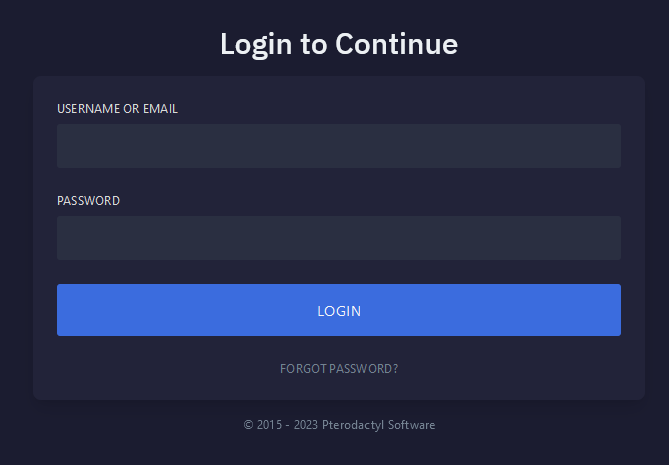
Navigate to [Pterodactyl](https://pterodactyl.aquatis.host/auth/login) panel's login screen and **Login**.
[](https://knowledgebase.aquatis.host/uploads/images/gallery/2023-04/MzpdMYdb3oZ49AmW-image.png)
##### Step 2
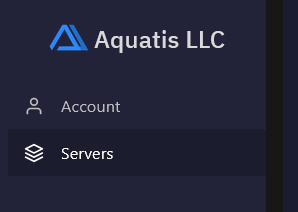
Navigate to the **Server** section on the left side navigation.
[](https://knowledgebase.aquatis.host/uploads/images/gallery/2023-04/ODz8fT17eRsBlvcu-image.png)
##### Step 3
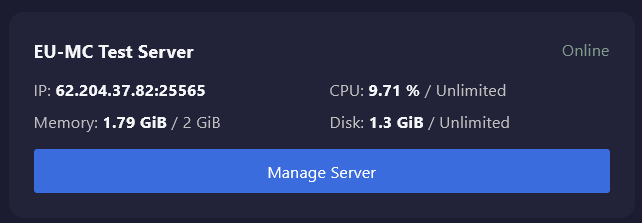
Navigate to the server you wish to manage, select the **Manage Server** button.
[](https://knowledgebase.aquatis.host/uploads/images/gallery/2023-04/gxNPLqYt83R87RDT-image.png)
##### Step 4
On the top navigation, select the **Network** text to manage the networking for your server.
[](https://knowledgebase.aquatis.host/uploads/images/gallery/2023-04/TqaJVJGfJV4pGMkf-image.png)
##### Step 5
Select the **Create Allocation** button to create a new port allocation for your server.
[](https://knowledgebase.aquatis.host/uploads/images/gallery/2023-04/7UlD5lw3DQ5bV8Zs-image.png)
##### Step 6
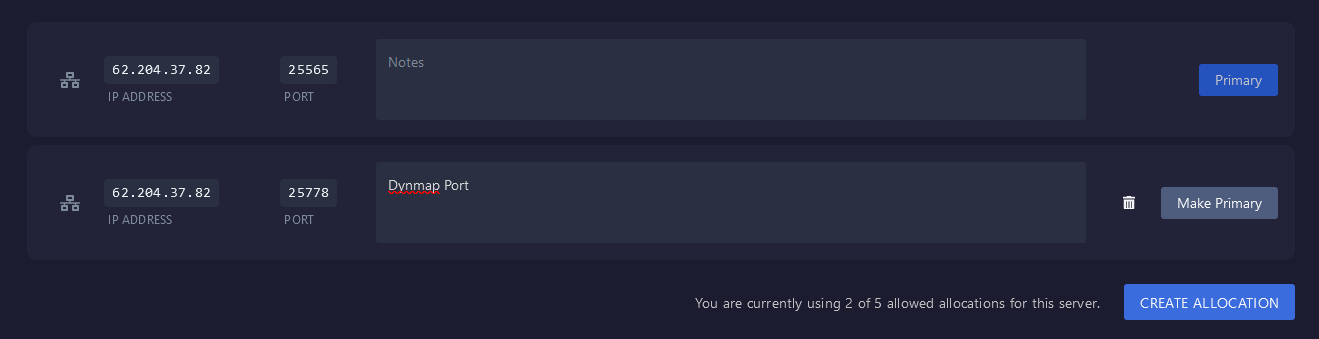
Type **Notes** into the notes box to create a reminder of what you are using that port for.
[](https://knowledgebase.aquatis.host/uploads/images/gallery/2023-04/5gdlfZtGhooeN7sg-image.png)
You are also able to delete the additional port, or make it the primary port for your server for players to connect with.
[](https://knowledgebase.aquatis.host/uploads/images/gallery/2023-04/1MgrGkVzTS48nFkg-image.png)
##### Step 7
On the top navigation, select the **Console** text to navigate to the server console.
[](https://knowledgebase.aquatis.host/uploads/images/gallery/2023-04/CqRU09yUezyvEKr9-image.png)
##### Step 8
Restart the server with the stop then start button. Upon completion, the ports will be open.