One example could be Exorath // Bungee. Review the image below to get a great example.
 ##### Step 5 On Multicraft, change the server jars to the ones you want to use for the network.Normally the bungee server has 512MB ram assigned to it since it does not need many resources to run.
You set the **bungee** jar for one of the servers with the lowest amount of ram and the rest of the servers as **spigot** as it's recommended.Ensure the bungee server is completely empty, meaning no files in the FTP system.
Assign the bungee server the latest bungeecord.jar on our jar list and the rest spigot server jars. [](https://knowledgebase.aquatis.host/uploads/images/gallery/2022-08/h1sKuv6bvSZ2G46T-image.png) ##### Step 6 We will now edit the config.yml file. Navigate on the left-hand side to "Files > FTP File Access" [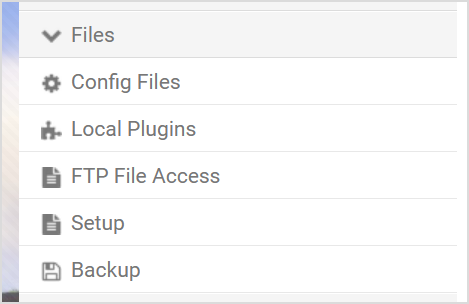](https://knowledgebase.aquatis.host/uploads/images/gallery/2022-08/kZn5xBFY4AOFZsVa-image.png) ##### Step 7 **Sign** in to the Website FTP server. [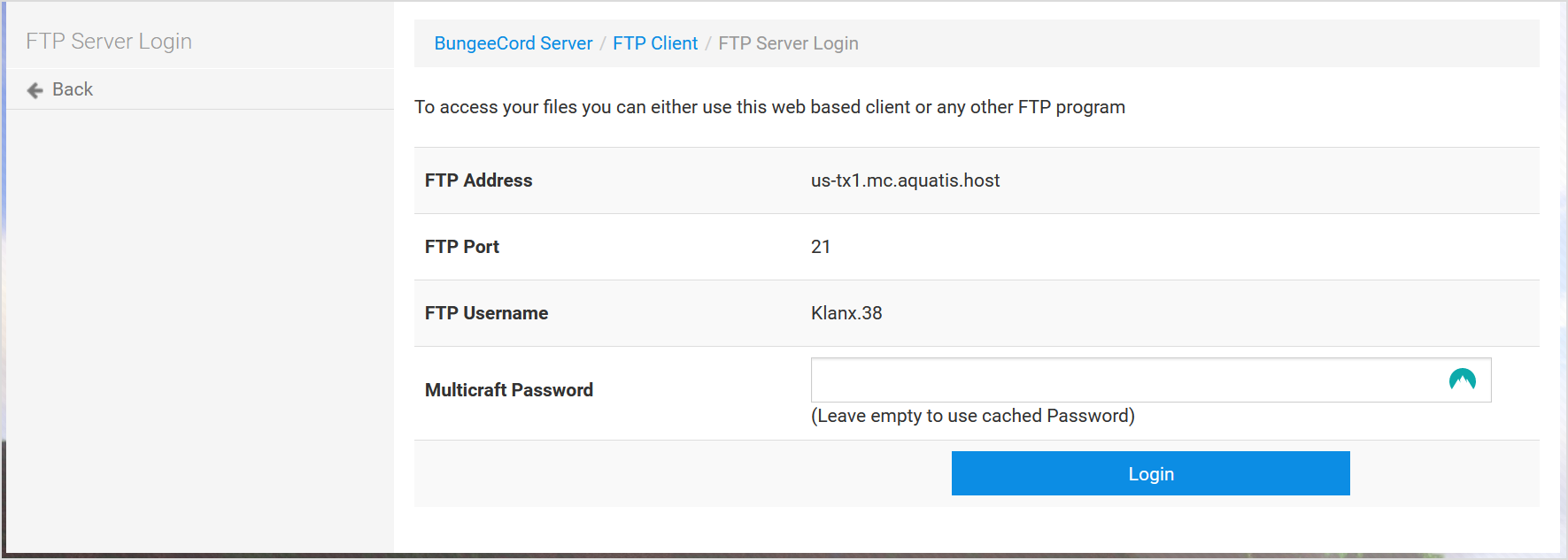](https://knowledgebase.aquatis.host/uploads/images/gallery/2022-08/YlBcbzACopfJxBkA-image.png) ##### Step 8 Click "edit" or download the file **config.yml** as it's the file that we will be configuring. [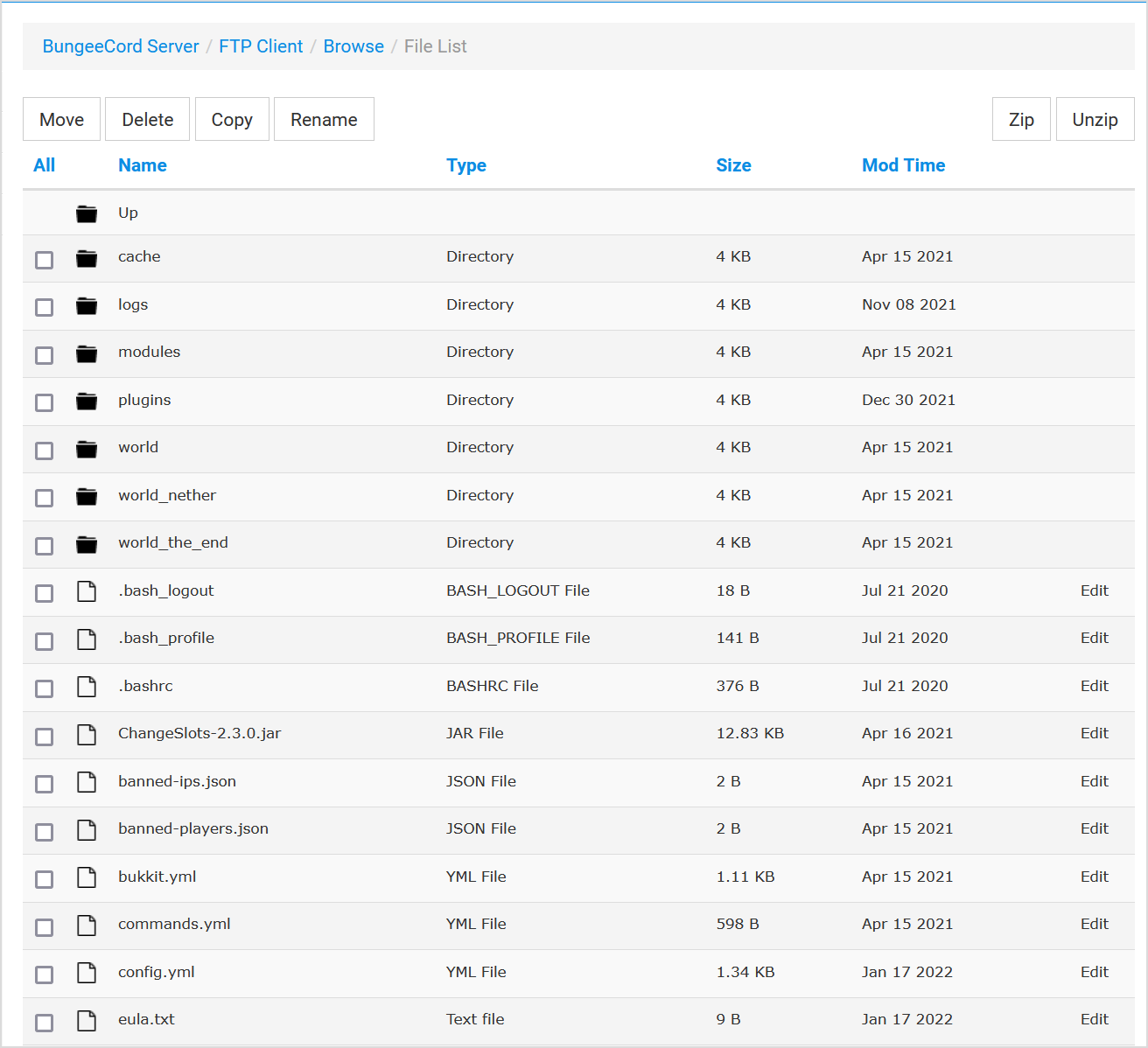](https://knowledgebase.aquatis.host/uploads/images/gallery/2022-08/y6T44KQ0joNEbz3B-image.png)Once you open the file you will be shown a lot of items. We will be going over the basics. if you need more help you could find a great guide [**here**](https://www.spigotmc.org/threads/bungeecord-configuration-guide.2652/) as it will teach you what each component does.
##### Step 9 Scroll down to the host section. Replace 0.0.0.0:25577 with your Server IP address.  We will not be doing most of the settings as this is a basic setup. Change your MOTD to something cool & unique!  Now for the servers section. For each server copy the Lobby section to the restricted. It should look like this at the start.  Now make 3 copies for the rest of the servers. The MOTD should match your original MOTD. The address should be the IP address of each of the sub-servers. Leave the rest alone. Allow ip\_forward to be active. Change it from false to true. In the end, it should look similar to this but with your own details.  ##### Step 10 Save the file and re-upload it back to the server. Start the bungee server, if the server does not successfully boot, you may have done some formatting wrong as YML is very strict with the formatting. We recommend you use a **[YAML parser](https://yaml-online-parser.appspot.com/)** to check for errors. If the bungee server boots. You did a great job! But you are not finished yet! Go to each of the sub-servers under our multicraft panel. Once you reach it on the left of the screen click Files > Config Files.  On the list that it gives you click Server Settings, It is usually the first option. Once you click it. Scroll down to Online Mode, and change it from True to False.This changes your server mode from online to offline, meaning it's not using Minecraft auth servers to verify accounts. Your bungee cord will be the only server running online mode as it's the server everyone will connect from.
Once you have done that, log in to the FTP, open spigot.yml, change "bungeecord=false" to "bungeecord=true" and restart the server. Be sure to do it for each of your sub-servers! Finally, join your server with the bungee IP!If your still having issues, don't hesitate to contact our support team for help!
# How do I find my Minecraft Servers FTP information? This guide will show you how to access your FTP information for third-party applications like Filezilla.Only share FTP information with people you trust. Aquatis will never ask for your password.
##### Step 1 **Navigate** to the [Multicraft ](https://panel.aquatis.host/index.php?r=site/login)panel. ##### Step 2 **Login** to the panel with your credentials. [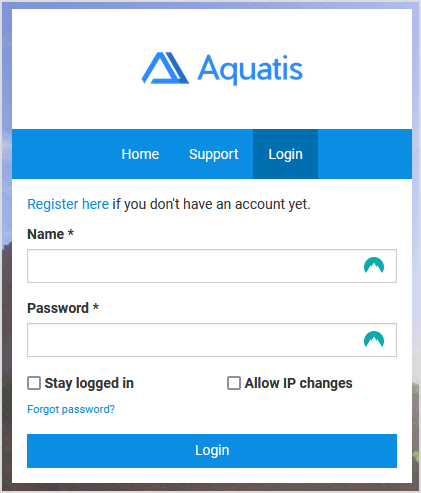](https://knowledgebase.aquatis.host/uploads/images/gallery/2022-08/eR4L1seh80Ng1Xed-image.png) ##### Step 3 Navigate to the server where you want to get the FTP information for. [](https://knowledgebase.aquatis.host/uploads/images/gallery/2022-08/nVuEG5qrXv7o984x-image.png) ##### Step 4 On the menu on the side, select "**Files > FTP File Access**". [](https://knowledgebase.aquatis.host/uploads/images/gallery/2022-08/kZn5xBFY4AOFZsVa-image.png) ##### Step 5 **Record** the details listed on your panel. Below is an example of what it should look like. [](https://knowledgebase.aquatis.host/uploads/images/gallery/2022-08/YlBcbzACopfJxBkA-image.png)| **FTP Address or FTP Host:** | us-tx1.mc.aquatis.host |
| **FTP Port:** | 21 |
| **FTP Username** | Klanx.38 |
| **FTP Password** | *The password you used to sign in to multicraft.* |
The username normally consists of the username of the user accessing the account and the server ID at the end. So in this example, the Username of the user is Klanx and the server ID is server 38. So the FTP account username would be Klanx.38!
# How do I find my Multicraft Servers ID? This guide will show you how to locate your Multicraft Server ID. Each server that is hosted under us has a specific number assigned to it that we refer to as an ID. This allows us to identify the server whenever we are troubleshooting. ##### Step 1 **Navigate** to the [Multicraft ](https://panel.aquatis.host/index.php?r=site/login)panel. ##### Step 2 **Login** to the panel with your credentials. [](https://knowledgebase.aquatis.host/uploads/images/gallery/2022-08/eR4L1seh80Ng1Xed-image.png) ##### Step 3 Navigate to the server where you want to get the server ID for. [](https://knowledgebase.aquatis.host/uploads/images/gallery/2022-08/nVuEG5qrXv7o984x-image.png) ##### Step 4 On the top of the address bar, you should see your server Id at the end of the link. [](https://knowledgebase.aquatis.host/uploads/images/gallery/2022-08/zVuLPXvMGAkvNBNl-image.png)The number at the end of the link identifies your server ID which for this server is 8219.