Not using Aquatis as your registrar? Follow this guide [**here**](https://knowledgebase.aquatis.host/books/cpanel-questions/page/what-are-the-name-servers-for-our-website-hosting-plans/) on how to change your name server on your registrar!
##### Step 1 Sign in to the [Billing Area](https://you.aquatis.host/clientarea.php). [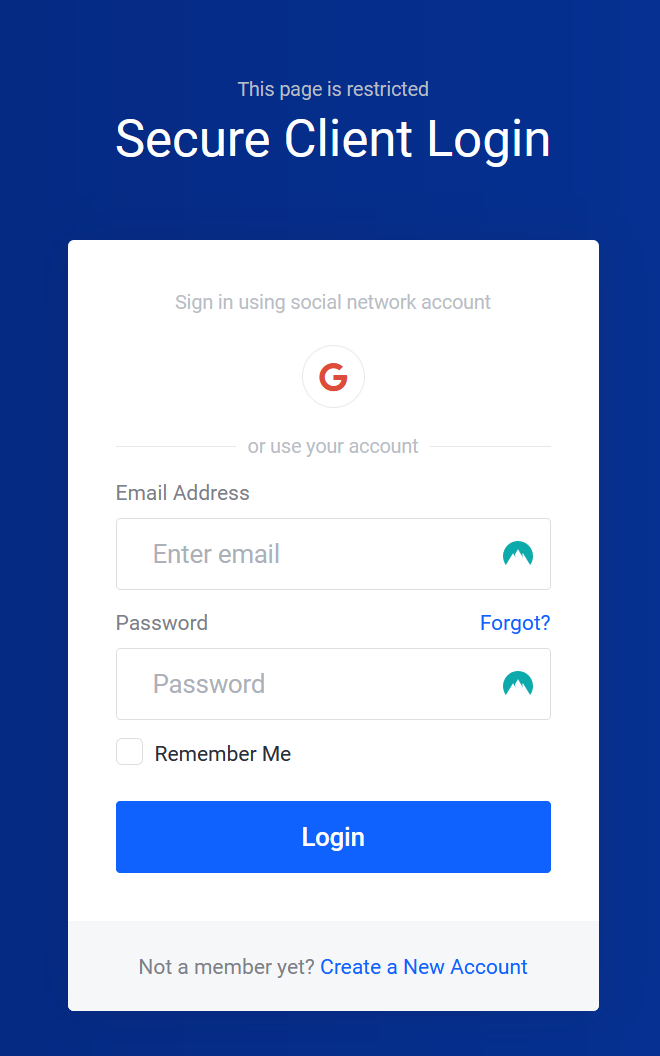](https://knowledgebase.aquatis.host/uploads/images/gallery/2022-08/EeyFAS3q4cSDj5if-image.png) ##### Step 2 Select the **Domains** box. [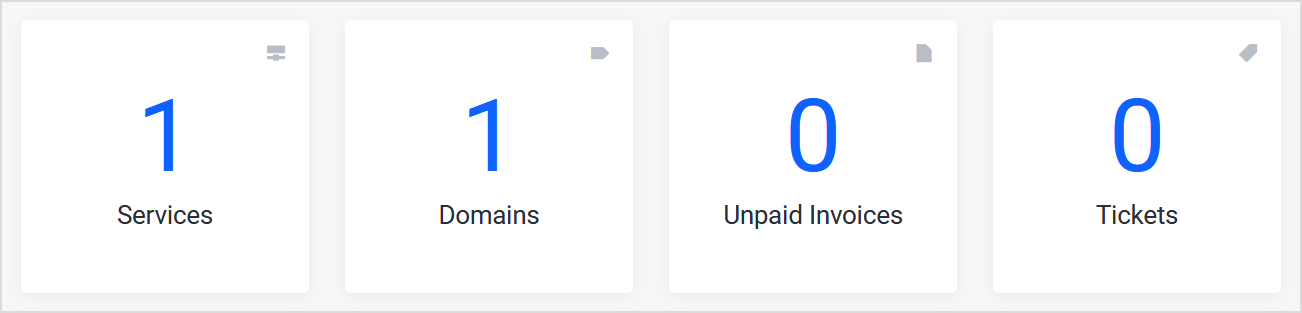](https://knowledgebase.aquatis.host/uploads/images/gallery/2022-08/oRA0rFhuAf1wS1u6-image.png) ##### Step 3 Select the **Domain** that you would like to modify settings for, and select the 3 dots on the right-hand side next to the domain. [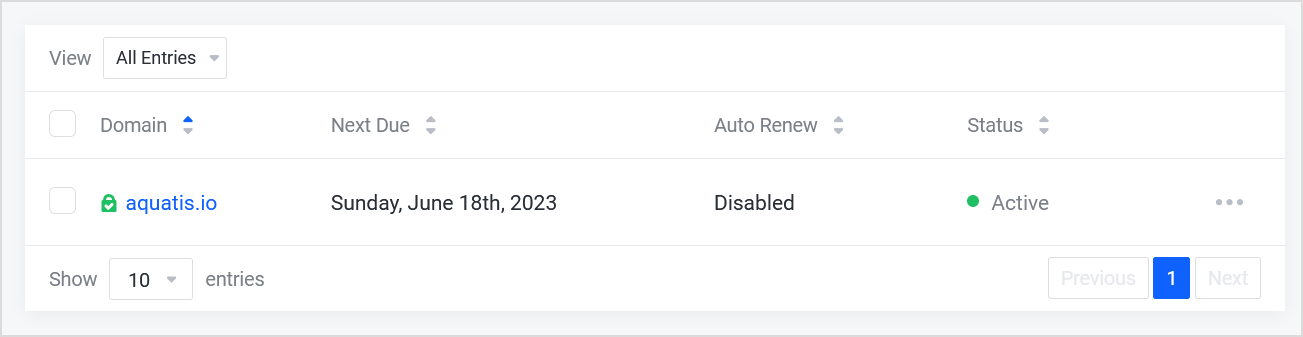](https://knowledgebase.aquatis.host/uploads/images/gallery/2022-08/jx8EUiGmXrMjIdF6-image.png) ##### Step 4 Select **Manage Domain** from the drop-down menu that appeared. [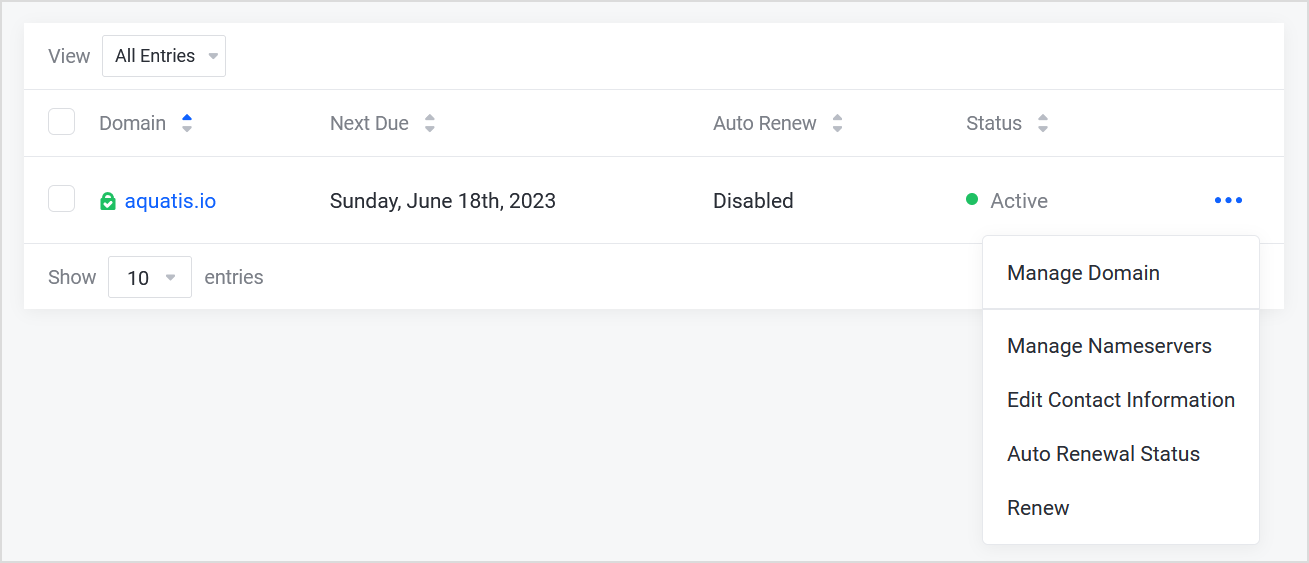](https://knowledgebase.aquatis.host/uploads/images/gallery/2022-08/YGNLAMrEI38o8u40-image.png) ##### Step 5 On the left-hand side under **Manage**, select **Nameservers**. [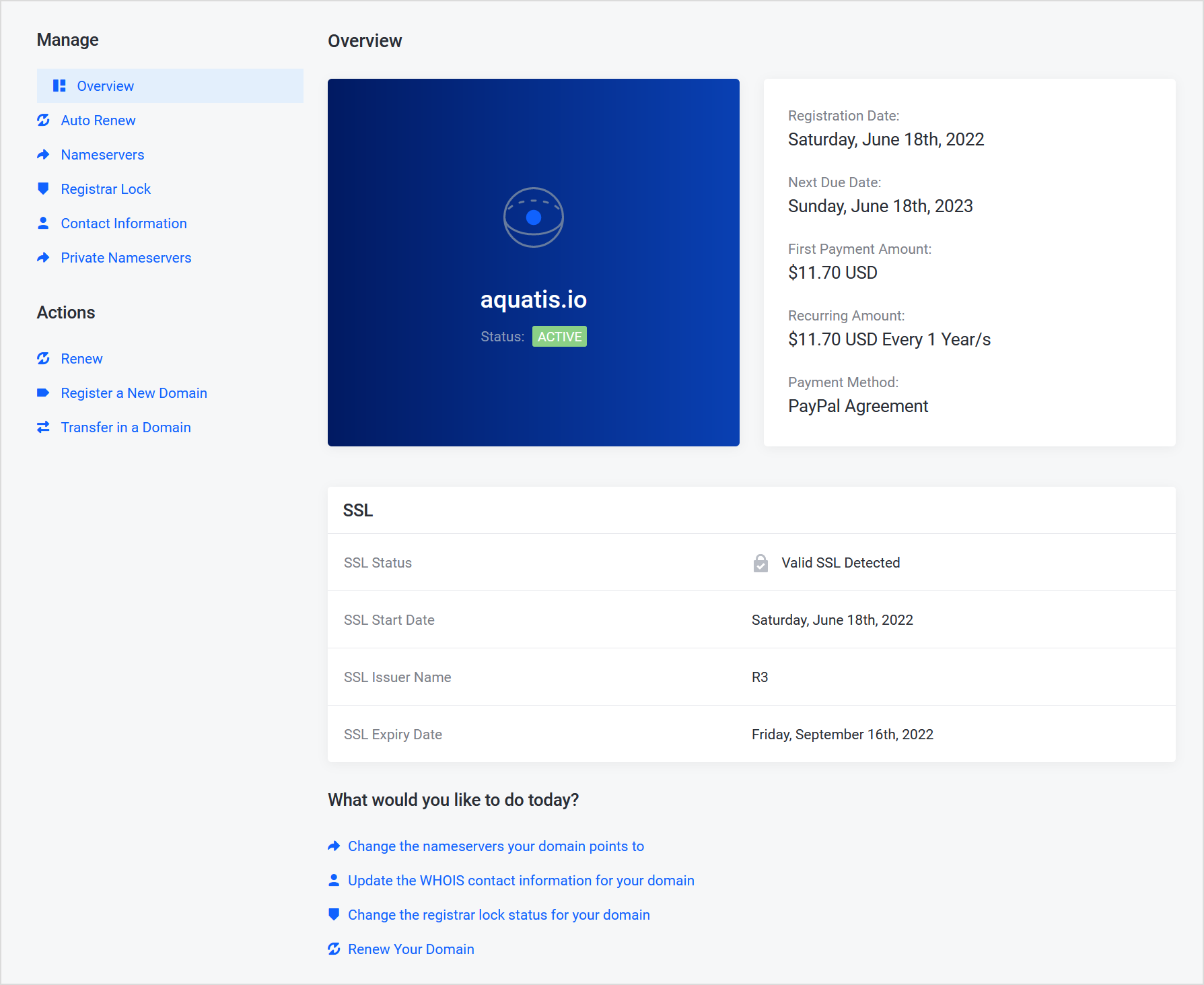](https://knowledgebase.aquatis.host/uploads/images/gallery/2022-08/RgJ2xxlNmgn9UjOl-image.png) ##### Step 6 [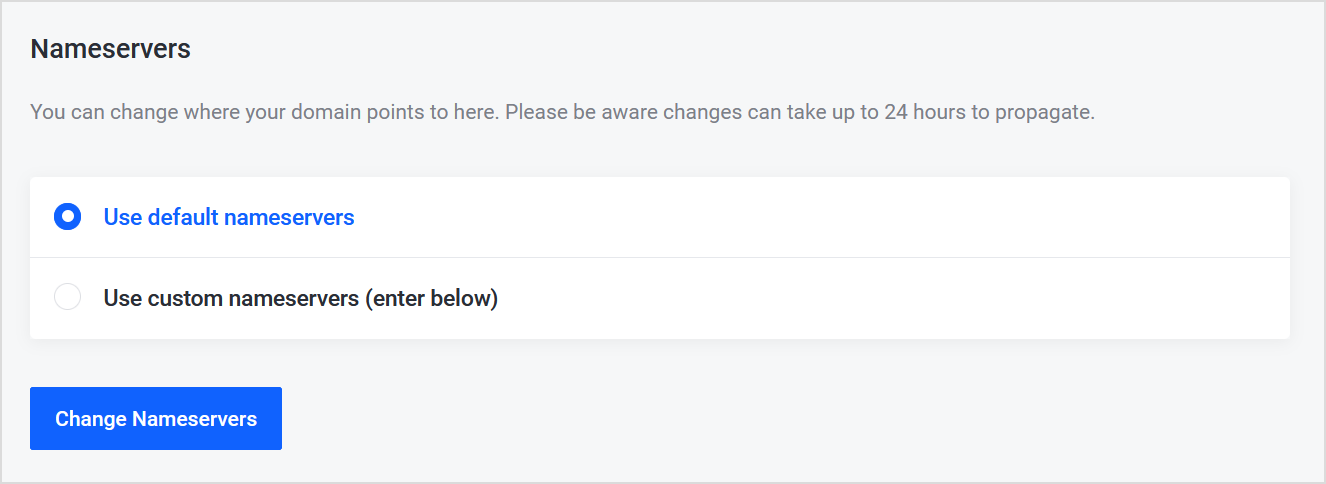](https://knowledgebase.aquatis.host/uploads/images/gallery/2022-08/VLeiVeoEBTtwUx5Y-image.png) ##### Step 7 Fill in **Nameserver1** & **Nameserver 2** with the name servers provided by the hosting provider that you wish to change to. [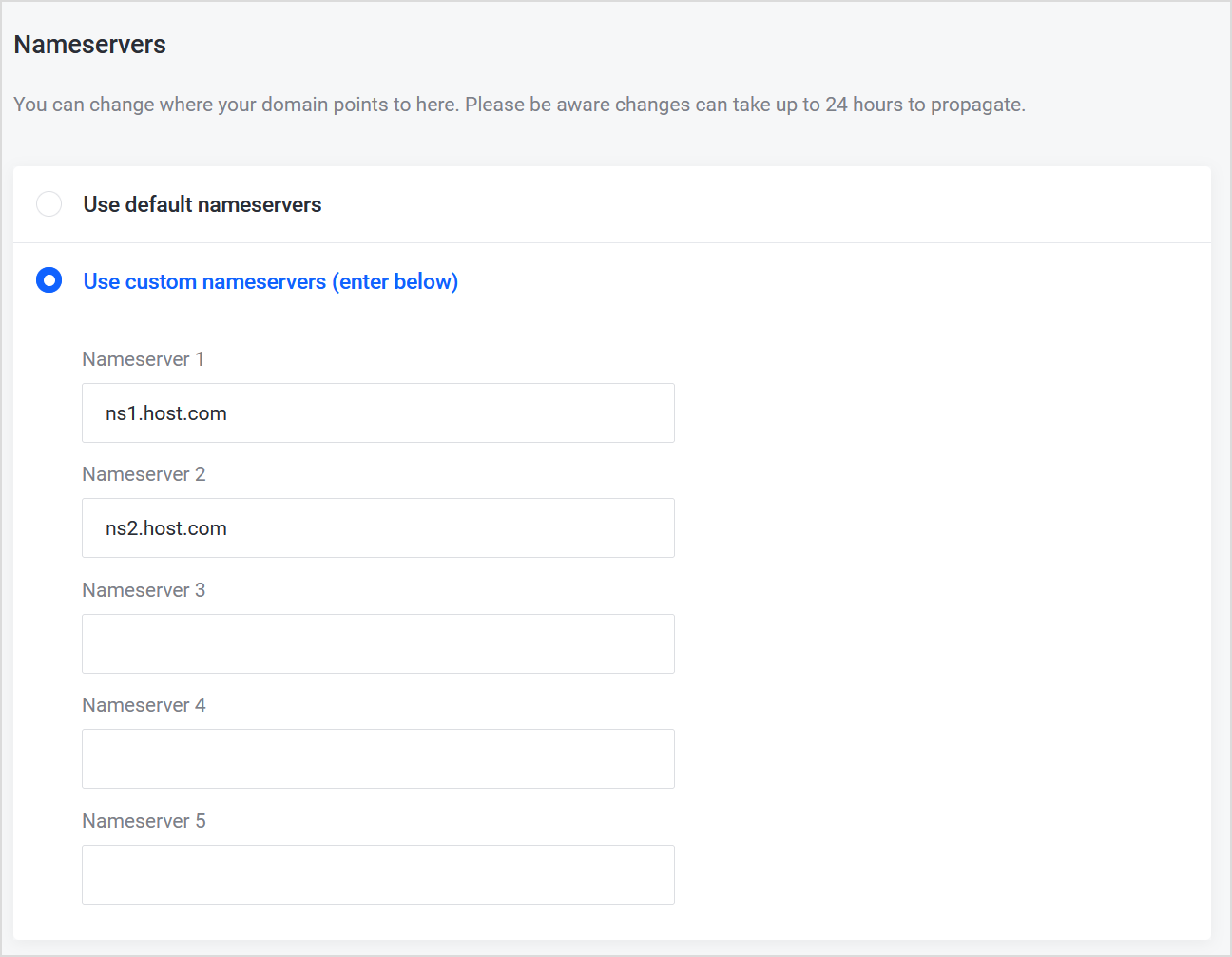](https://knowledgebase.aquatis.host/uploads/images/gallery/2022-08/Fn6LBbryOA65fEri-image.png) ##### Step 8 Select **Change Nameservers** to submit the request.Once you have submitted the change, you need to wait for the changes to take effect. Most DNS updates take effect within an hour or so but could take up to 24-72 hours to update globally. This period is referred to as worldwide DNS propagation.
[](https://knowledgebase.aquatis.host/uploads/images/gallery/2022-08/9ILau9GojKWUebco-image.png)