The information you submit on Cloudflare does not need to match your Aquatis account billing information.
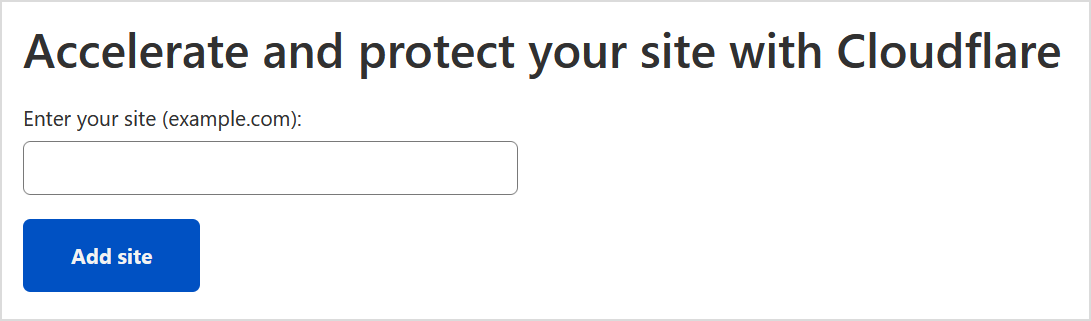
[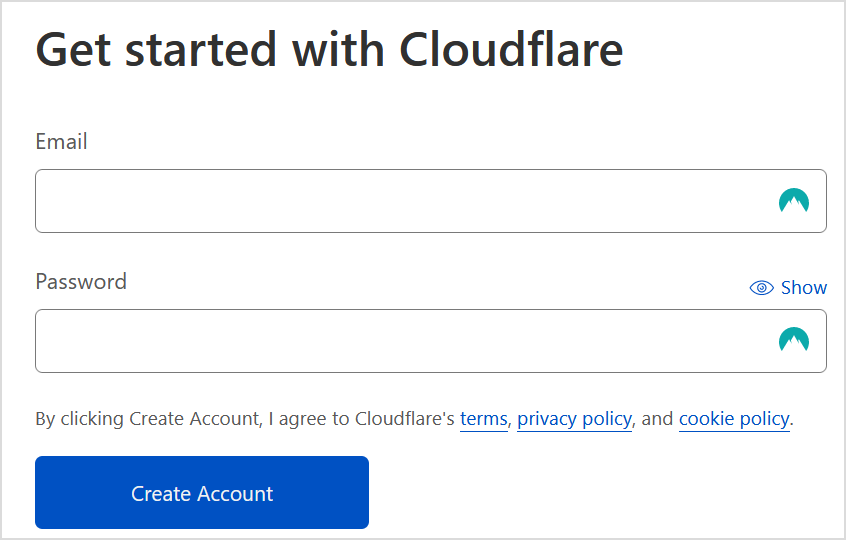](https://knowledgebase.aquatis.host/uploads/images/gallery/2022-08/jgXMXC9kcElxWviH-image.png) ##### Step 3 Select "**Get started"** for the first option, **Cloudflare for Infrastructure.** [](https://knowledgebase.aquatis.host/uploads/images/gallery/2022-08/sTBfAmCdR9PyvZWw-image.png) ##### Step 4 Type in the **Domain** that you would like to link to Cloudflare.If your website is [https://www.yourdomain.com](https://www.yourdomain.com), do not include https:// or www. in your domain while entering. For the example here, you would only put **yourdomain.com**.
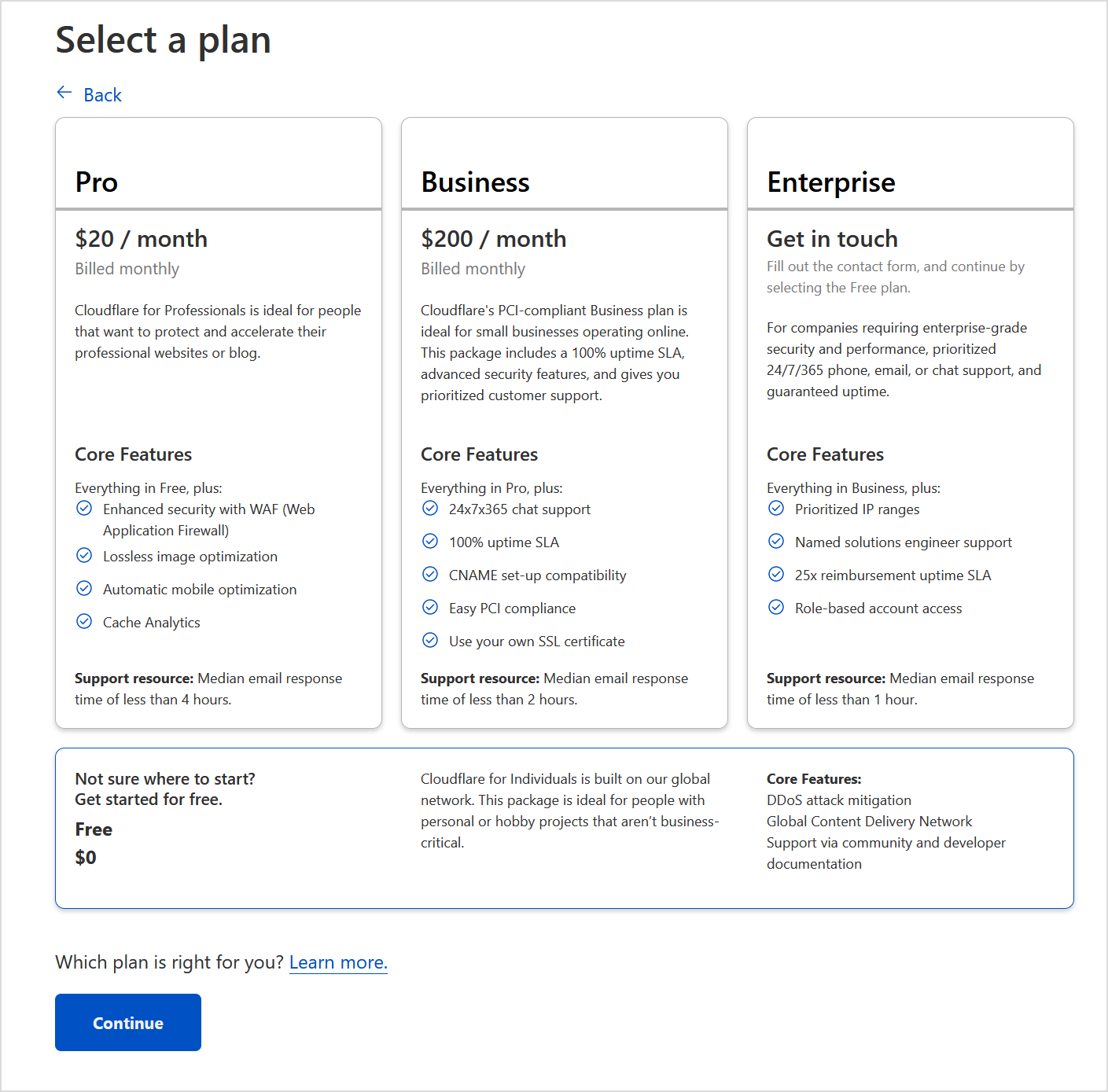
[](https://knowledgebase.aquatis.host/uploads/images/gallery/2022-08/FLnHTLzKQ8mbzkG3-image.png) ##### Step 5 Select the **Free** plan at the bottom, then select **Continue**.You are free to purchase any plan you want, please note that Aquatis is not affiliated with Cloudflare in terms of support/sales.
[](https://knowledgebase.aquatis.host/uploads/images/gallery/2022-08/7vW59qePLePAWS7P-image.png) ##### Step 6 [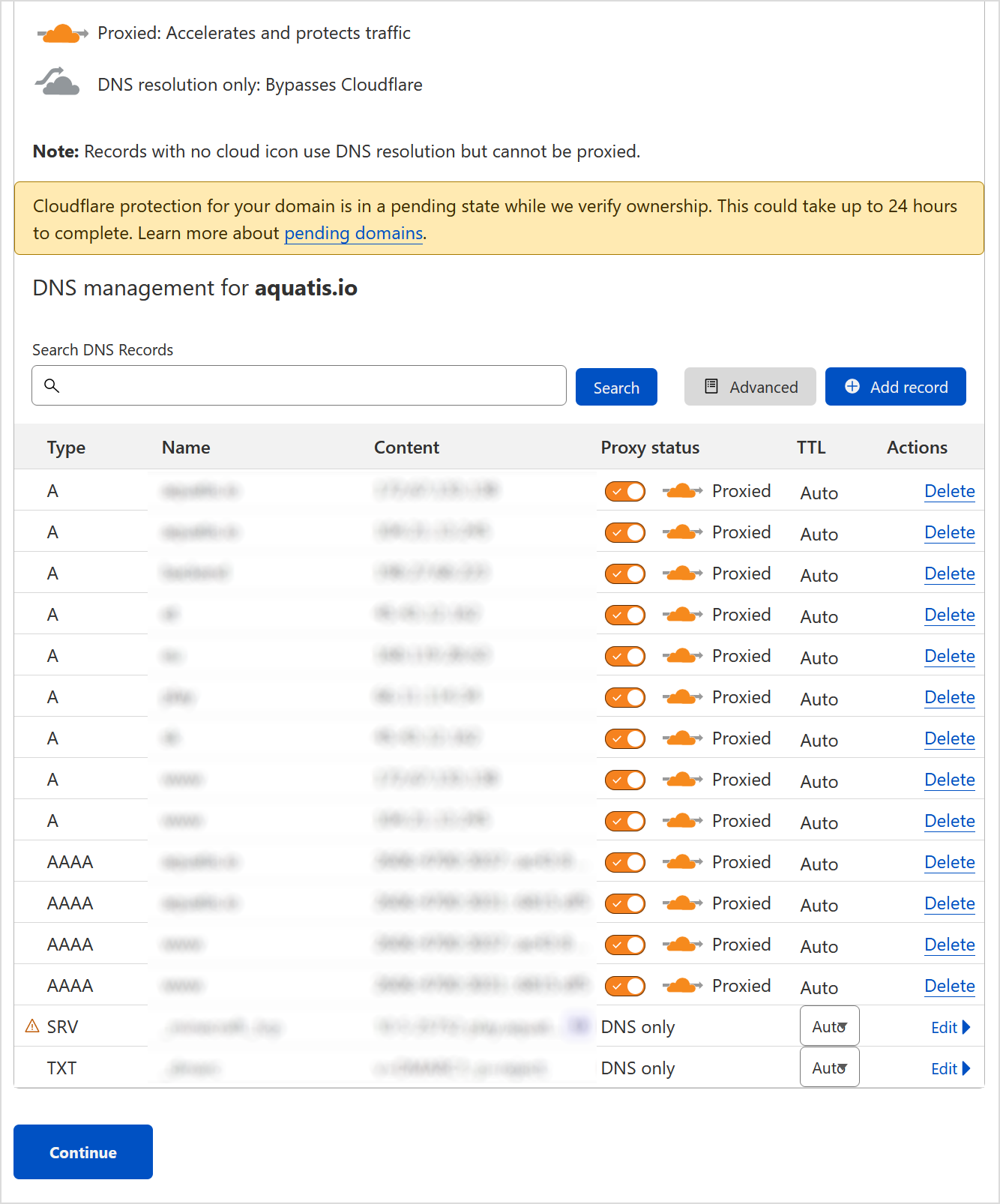](https://knowledgebase.aquatis.host/uploads/images/gallery/2022-08/gyKuggBgxkgO01wa-image.png) ##### Step 7 **Record** the name servers provided to you from Cloudflare. Login to your domain registrar and change the names of servers to the ones provided by you from Cloudflare. In this example, they are eloise.ns.cloudflare.com & emerson.ns.cloudflare.com. Once you are done, select **"Done, check nameservers"**.The name servers provided on your end may/will be different from this example. So be sure to read your screen to verify!
[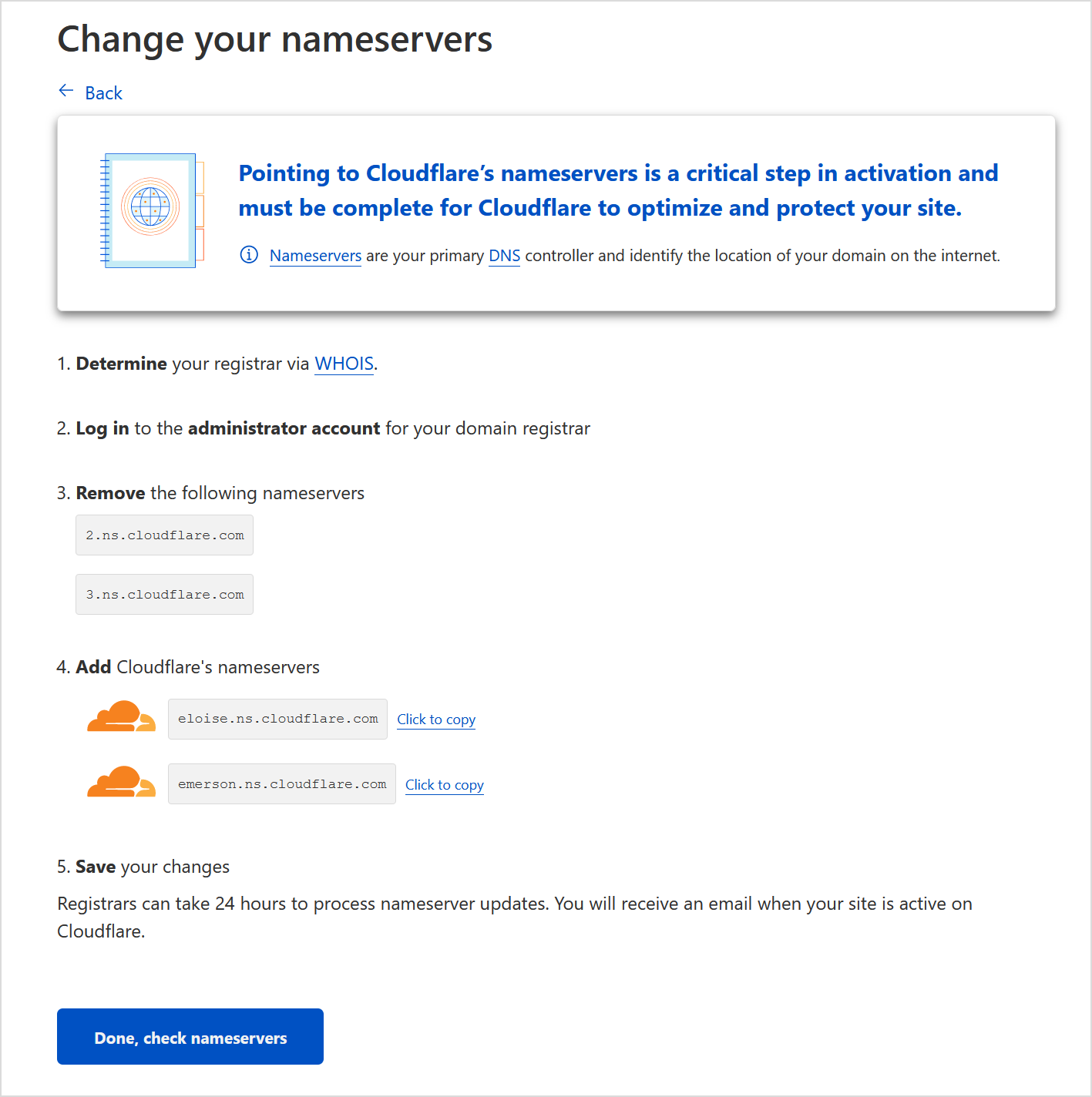](https://knowledgebase.aquatis.host/uploads/images/gallery/2022-08/7GfufGl7ZG7YTB4p-image.png)Using Aquatis as your domain registrar? We have a link to our article **[here](https://knowledgebase.aquatis.host/books/domain-guide/page/how-do-i-change-my-nameservers)** on how to do so!
##### Step 8 **Configure** recommendations based on your preference. If you are not sure what to do, select skip recommendations for now. [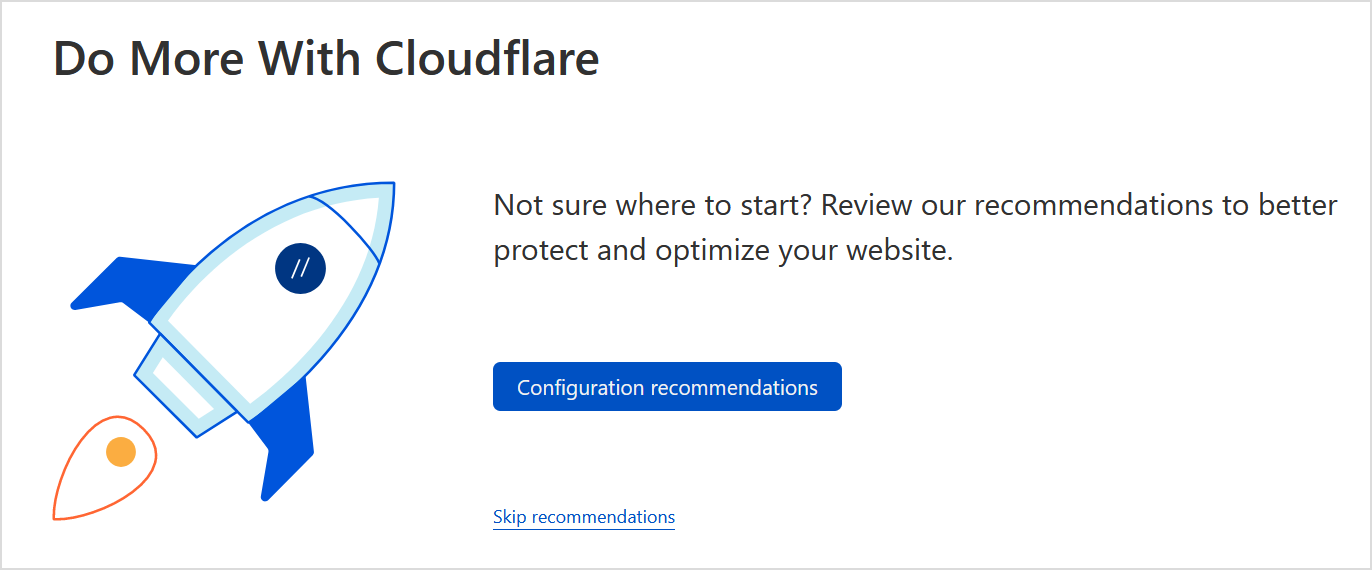](https://knowledgebase.aquatis.host/uploads/images/gallery/2022-08/R6GyAYttAxdvROZl-image.png) ##### Step 9 **Wait** 24 hours while your name servers are propagated over to Cloudflare. Once you get an email from Cloudflare saying your website is active. You are all set!