An FTP client is *an application on your computer that connects you to remote servers through FTP and other protocols*.
##### Step 1 **Download & Install** an FTP client. In this example, we will be using [Filezilla](https://filezilla-project.org/download.php?type=client). [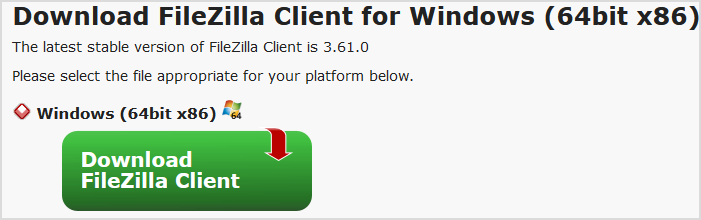](https://knowledgebase.aquatis.host/uploads/images/gallery/2022-10/jw3nNFG2p9HIRmzi-image.png) ##### Step 2 **Sign** into [cPanel](https://webnode.aquatis.host:2083/). [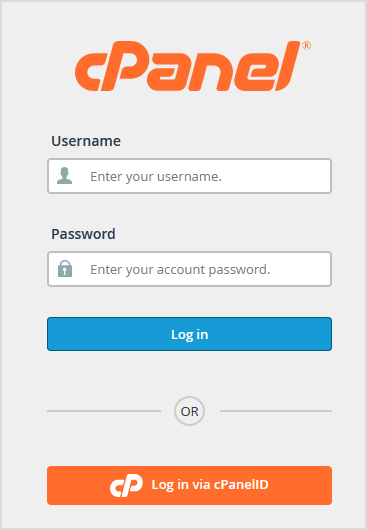](https://knowledgebase.aquatis.host/uploads/images/gallery/2022-10/pwnihJXUKaVTARvr-image.png) ##### Step 3 **Copy** the Shared IP Address value. This will be referred to as the FTP host later on. [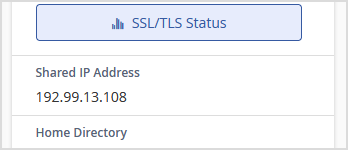](https://knowledgebase.aquatis.host/uploads/images/gallery/2022-10/5EU7Gp9jkqSaFOIt-image.png) ##### Step 4 **Navigate** back to Filezilla and open Site Manager under File. [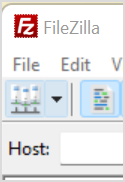](https://knowledgebase.aquatis.host/uploads/images/gallery/2022-10/D2z67HCubIsR1UUj-image.png) ##### Step 5 **Select** "New site" to create a new Site to keep stored on your FTP client. [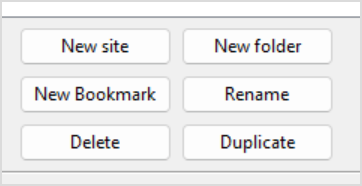](https://knowledgebase.aquatis.host/uploads/images/gallery/2022-10/OForXXB2NUyqPRBN-image.png) ##### Step 6 **Type** in the name that you want the site to be named as in the FTP client. [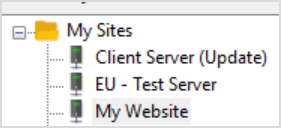](https://knowledgebase.aquatis.host/uploads/images/gallery/2022-10/Wy1nNllXweMv9Jhz-image.png) ##### Step 7 **Configure** the values as shown, then **select** OK. Protocol: SFTP - SSH File Transfer Protocol Host: Shared IP Address from **Step 3** Port: **22** User: cPanel Username that you used to sign in from **Step 2** Password: cPanel Password that you used to sign in from **Step 2** [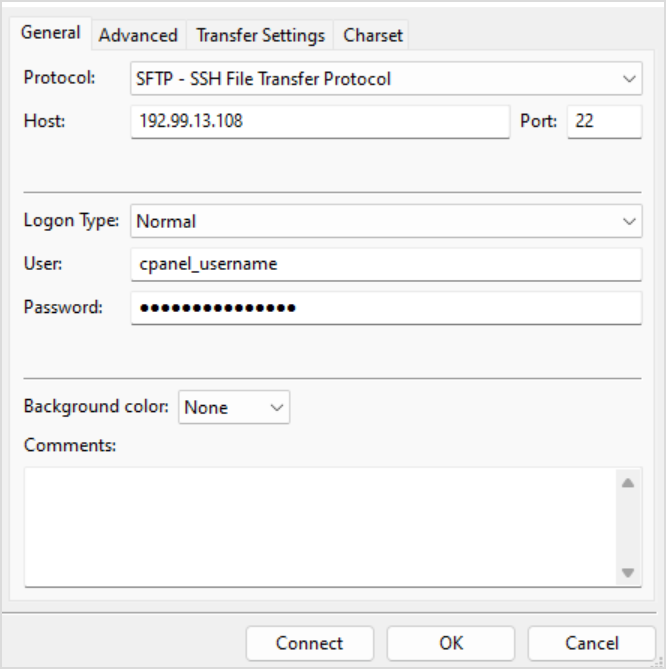](https://knowledgebase.aquatis.host/uploads/images/gallery/2022-10/ilvYS3AArzwYwd8d-image.png)Using SFTP (Port 22) allows secure file transfers over the internet. Using FTP (Port 21) is considered unsecured, meaning the content of your files is **not encrypted** when being transferred over the internet.
##### Step 8 **Select** in the Site Manager dropdown the site you just created. [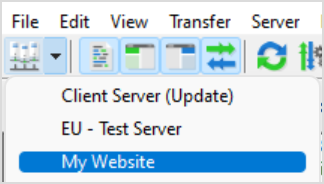](https://knowledgebase.aquatis.host/uploads/images/gallery/2022-10/wf68fAPhcFqrFu9C-image.png) ##### Step 9 **Read** the prompt that appears about an unknown host key. Ensure that the Host matches the Shared IP address from Step 3, if so. **Select** OK. [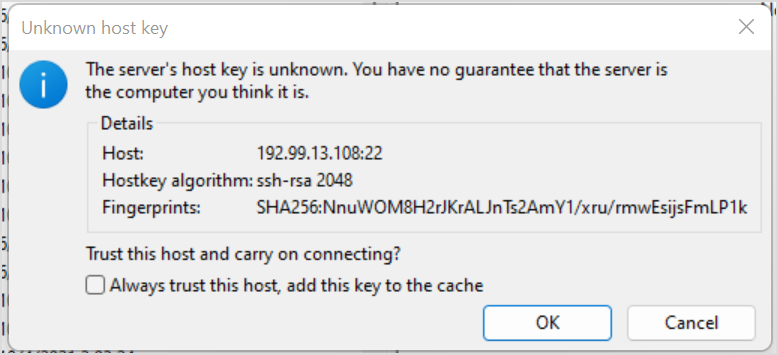](https://knowledgebase.aquatis.host/uploads/images/gallery/2022-10/98ygvfFWnH4T54jU-image.png) ##### Step 10 **Complete** the tasks that you need to do [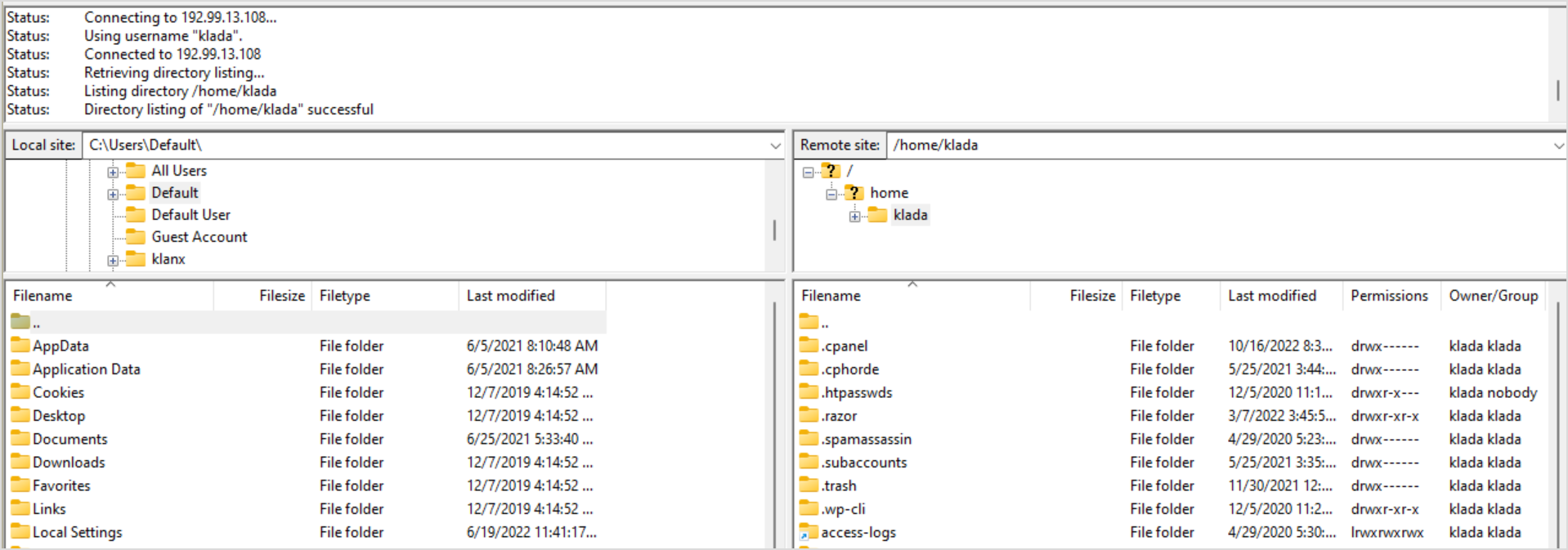](https://knowledgebase.aquatis.host/uploads/images/gallery/2022-10/5teTphJIlDCrAGld-image.png)The left-hand side is your local computer, the right-hand side is the website files. To modify files that are public, navigate to the "public\_html" file and start placing/removing content there.
You have completed reading this guide.