How do I open a support ticket?
Step 1
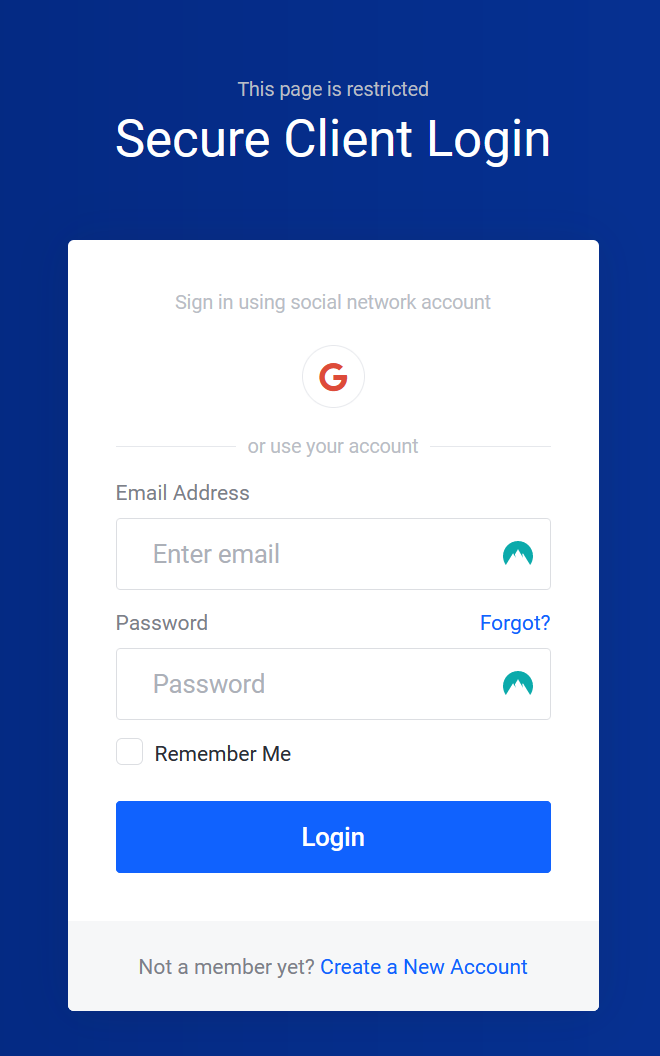
Sign in to the Billing Area.
Step 2
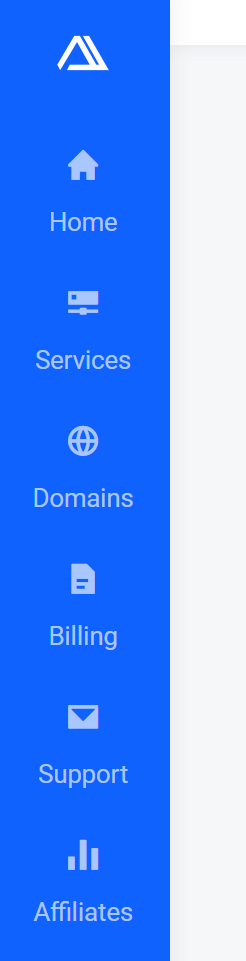
Select the Support icon on the side navigation bar.
Step 3
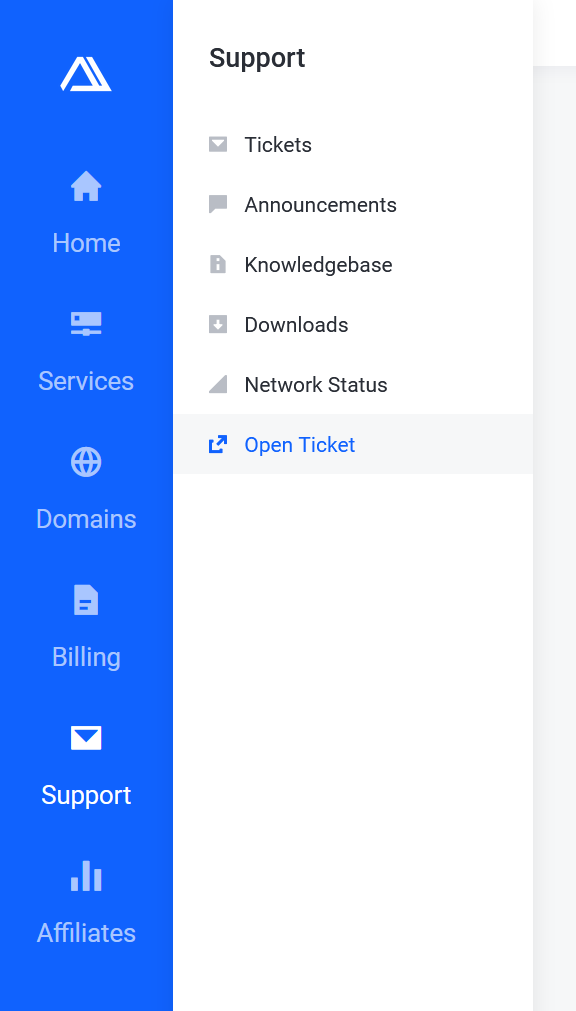
Select Open Ticket in the sub-menu that appeared.
Step 4
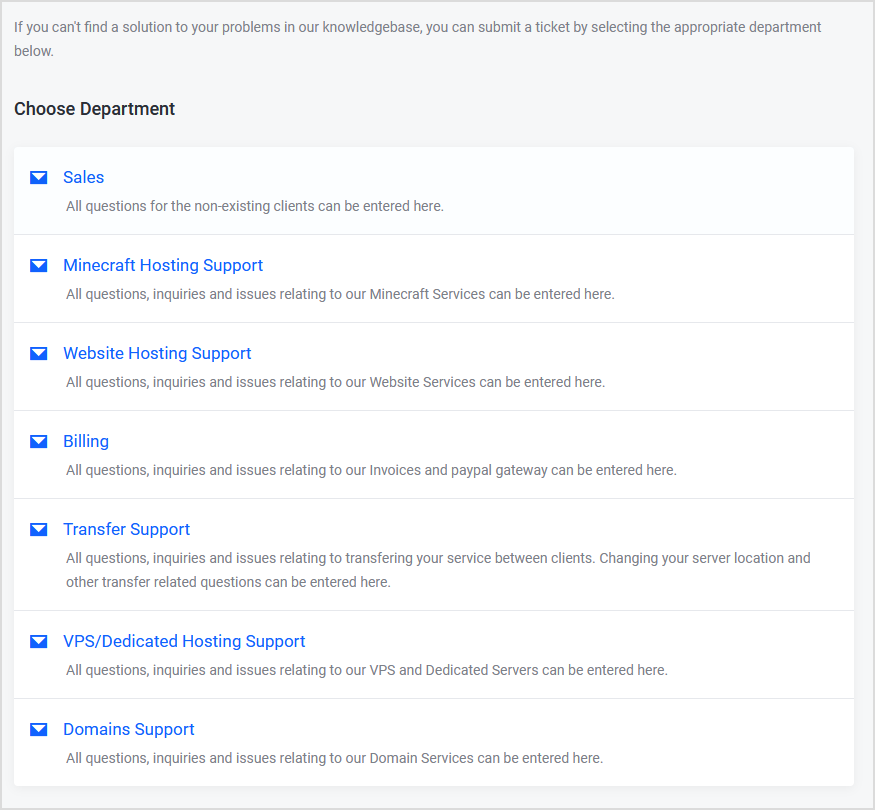
Select the Department that closely resembles the issue you are having.
Step 5
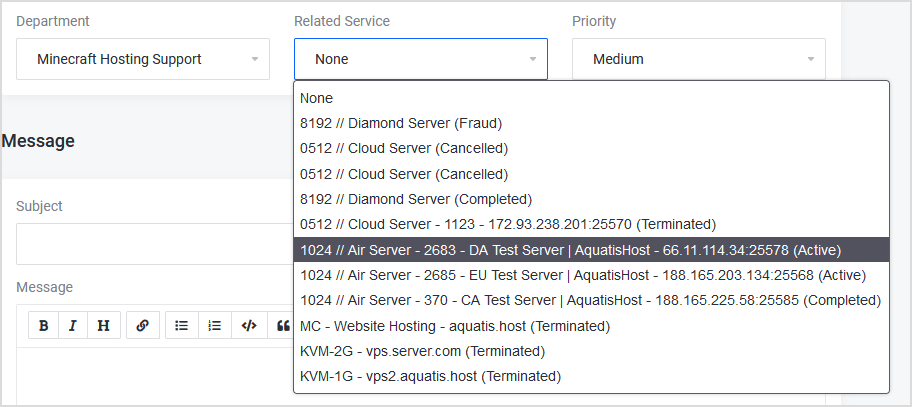
On the Ticket Information section on the top. Select the Related Service if applicable.
Step 6
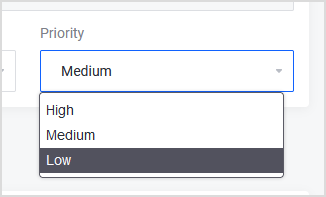
Low Priority
- Max ticket response time of 24 Hours.
- Non-urgent ticket.
- Problem impacting product/service that's not impacting the end user's experience.
- Service is online/usable.
Medium Priority
- Max ticket response time of 12 Hours.
- Semi-urgent ticket.
- Problem impacting product/service that is slightly impacting the end user's experience.
- Service is sick/mostly usable.
High Priority
- Max ticket response time of 4 Hours.
- Urgent ticket.
- Problem impacting product/service is ultimately impacting the end user's experience.
- Service is offline/unusable.
Step 7
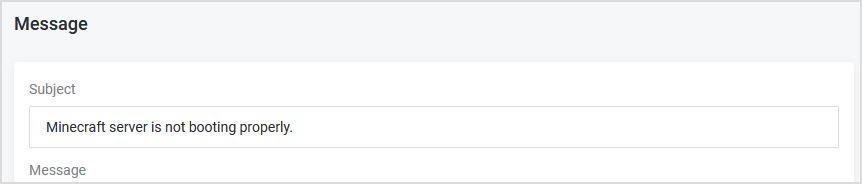
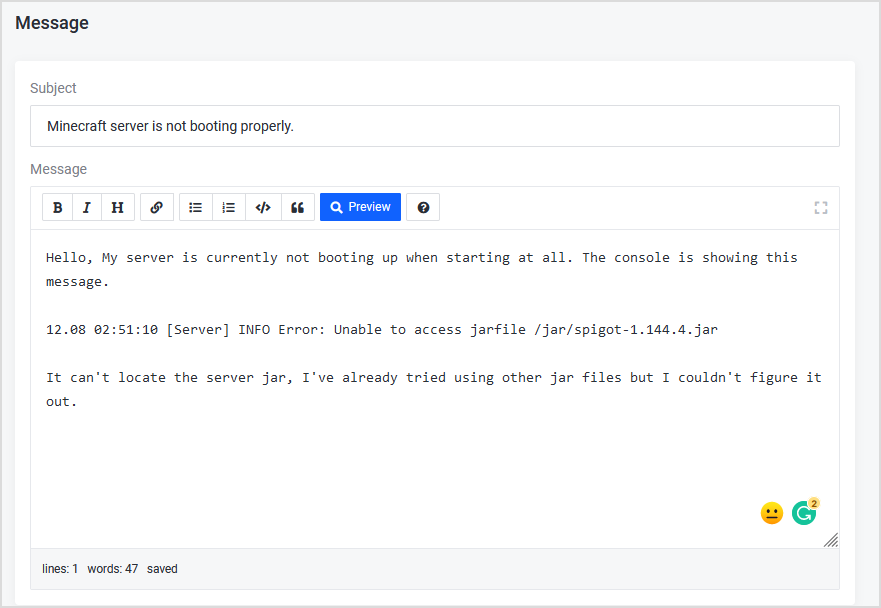
Fill in the Subject, summarizing your message in under a sentence.
Step 8
Fill in the Message, and attempt to much as much info as possible in the message box. The more information you put in, the fewer questions we have to ask which allows us to resolve your query faster.
The less information you put in the message. The more time it would take for us to figure out what the problem is. Below is an example.
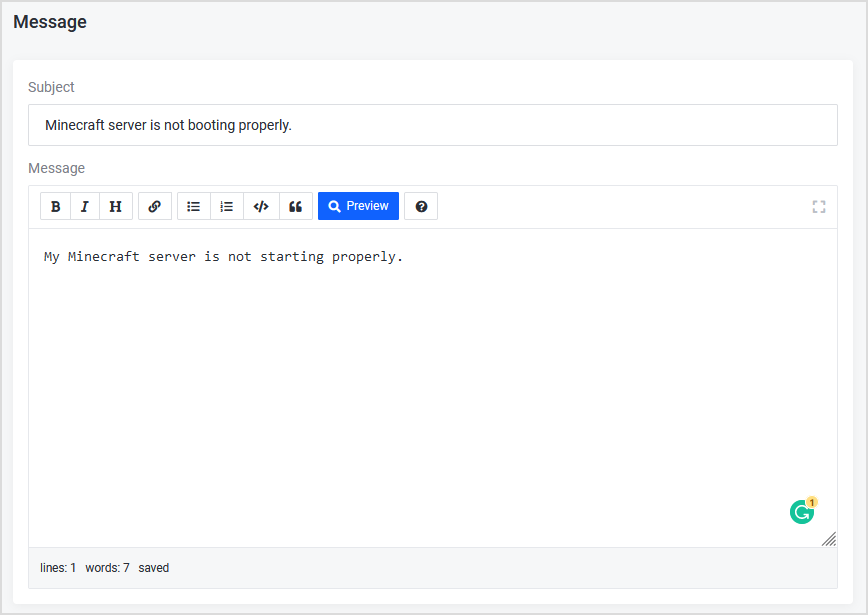
The more information you put in, the less time it will take for us to resolve or help you with your issue! Below is a great example. This example allows us to know the problem instantly and work to resolve it!
Step 9
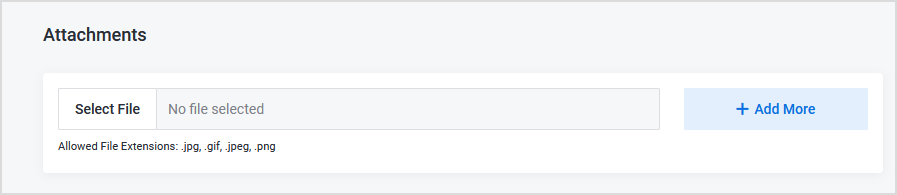
Attach Files, if applicable.
Step 10
Submit the ticket, you will receive an email confirmation saying your ticket has been received with more information.
