# Billing Area Guides

# How do I cancel my service?

##### Step 1

Sign in to the [Billing Area](https://you.aquatis.host/clientarea.php).

[![image.png](https://knowledgebase.aquatis.host/uploads/images/gallery/2022-08/scaled-1680-/EeyFAS3q4cSDj5if-image.png)](https://knowledgebase.aquatis.host/uploads/images/gallery/2022-08/EeyFAS3q4cSDj5if-image.png)

##### Step 2  


Select the **Services** box.

[![image.png](https://knowledgebase.aquatis.host/uploads/images/gallery/2022-08/scaled-1680-/ZUcBpsGTJVZWvGln-image.png)](https://knowledgebase.aquatis.host/uploads/images/gallery/2022-08/ZUcBpsGTJVZWvGln-image.png)

##### Step 3

Change the view to **Active**.

[![image.png](https://knowledgebase.aquatis.host/uploads/images/gallery/2022-08/scaled-1680-/n8XOVhHV2F0uxxzU-image.png)](https://knowledgebase.aquatis.host/uploads/images/gallery/2022-08/n8XOVhHV2F0uxxzU-image.png)

##### Step 4  


Select the **Product** that you would like to cancel.

[![image.png](https://knowledgebase.aquatis.host/uploads/images/gallery/2022-08/scaled-1680-/2I5LPOy2BhhxS2NG-image.png)](https://knowledgebase.aquatis.host/uploads/images/gallery/2022-08/2I5LPOy2BhhxS2NG-image.png)

##### Step 5  


On the left-hand side under **Actions**, select **Request Cancellation**.

[![image.png](https://knowledgebase.aquatis.host/uploads/images/gallery/2022-08/scaled-1680-/SgqpWjk9tEn0vViW-image.png)](https://knowledgebase.aquatis.host/uploads/images/gallery/2022-08/SgqpWjk9tEn0vViW-image.png)

##### Step 6  


<label for="cancellationreason">Fill in the box "Briefly Describe your reason for Cancellation" with the **purpose** of your cancellation.</label>

[![image.png](https://knowledgebase.aquatis.host/uploads/images/gallery/2022-08/scaled-1680-/v1qrFSHdF0YNDEDs-image.png)](https://knowledgebase.aquatis.host/uploads/images/gallery/2022-08/v1qrFSHdF0YNDEDs-image.png)

##### Step 7  


Select the Cancellation **type**.

[![image.png](https://knowledgebase.aquatis.host/uploads/images/gallery/2022-08/scaled-1680-/6LaGvb9HrdCRw3RX-image.png)](https://knowledgebase.aquatis.host/uploads/images/gallery/2022-08/6LaGvb9HrdCRw3RX-image.png)

<details id="bkmrk-%22immediate%22-cancella"><summary>"Immediate" Cancellation</summary>

The *Immediate* option terminates the product/service on the same day around (8:00 PM EST/12:00 AM GMT), regardless of the service's Next Due Date.

</details><details id="bkmrk-%22end-of-billing-peri"><summary>"End of Billing Period" Cancellation</summary>

The *End of Billing Period* option terminates the product/service on the service's Next Due Date.

</details>##### Step 8  


Select Submit to submit the request.

<p class="callout warning">Submitting a Cancellation Request does not automatically give you a refund. If you are within the 72-hour refund period and want a refund on an eligible product, please open a ticket in our billing area.</p>

[![image.png](https://knowledgebase.aquatis.host/uploads/images/gallery/2022-08/scaled-1680-/l3QiAhoU0McBsuCW-image.png)](https://knowledgebase.aquatis.host/uploads/images/gallery/2022-08/l3QiAhoU0McBsuCW-image.png)

# How do I open a support ticket?

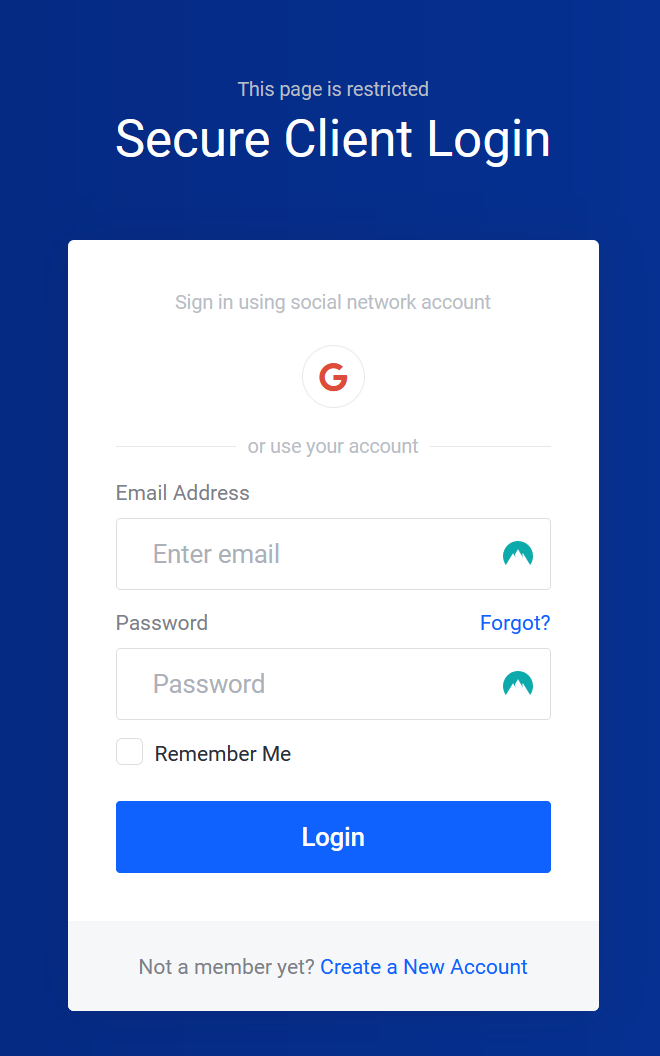
##### Step 1  


Sign in to the [Billing Area](https://you.aquatis.host/clientarea.php).

[![image.png](https://knowledgebase.aquatis.host/uploads/images/gallery/2022-08/scaled-1680-/EeyFAS3q4cSDj5if-image.png)](https://knowledgebase.aquatis.host/uploads/images/gallery/2022-08/EeyFAS3q4cSDj5if-image.png)
##### Step 2  


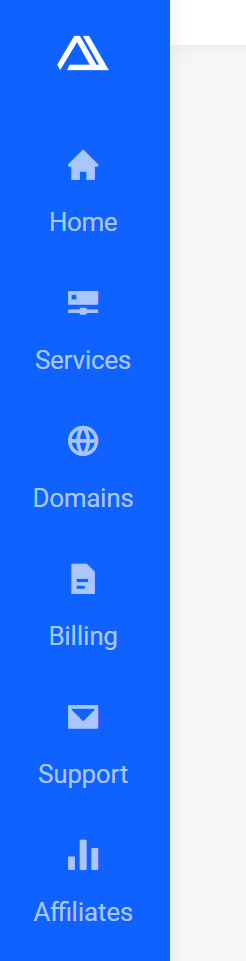
Select the **Support** icon on the side navigation bar.

[![image.png](https://knowledgebase.aquatis.host/uploads/images/gallery/2022-08/scaled-1680-/Anr4fwwVl2CgYPoJ-image.png)](https://knowledgebase.aquatis.host/uploads/images/gallery/2022-08/Anr4fwwVl2CgYPoJ-image.png)
##### Step 3

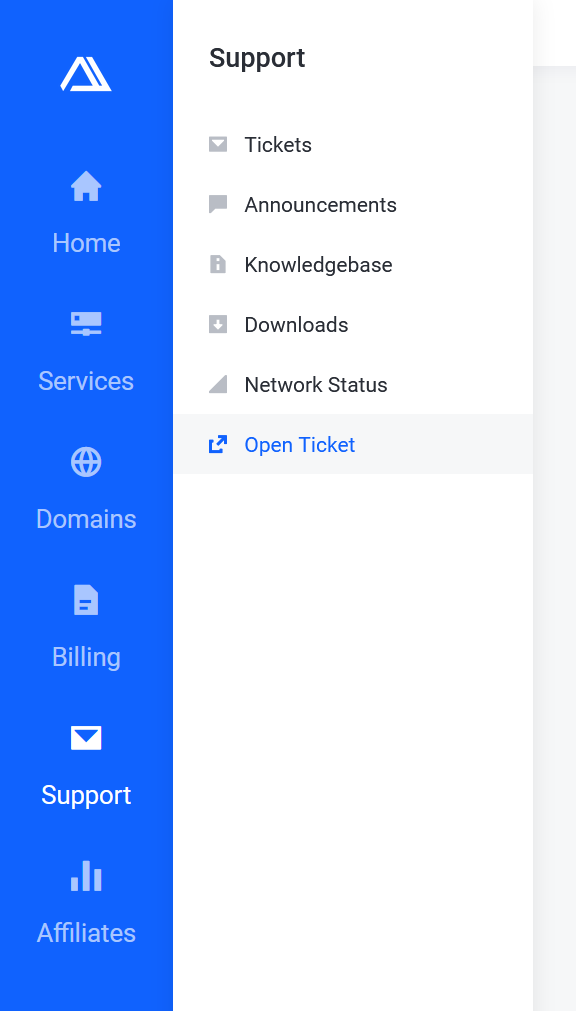
Select **Open Ticket** in the sub-menu that appeared.

[![image.png](https://knowledgebase.aquatis.host/uploads/images/gallery/2022-08/scaled-1680-/BGHR8MZ2OoOYDEB5-image.png)](https://knowledgebase.aquatis.host/uploads/images/gallery/2022-08/BGHR8MZ2OoOYDEB5-image.png)
##### Step 4  


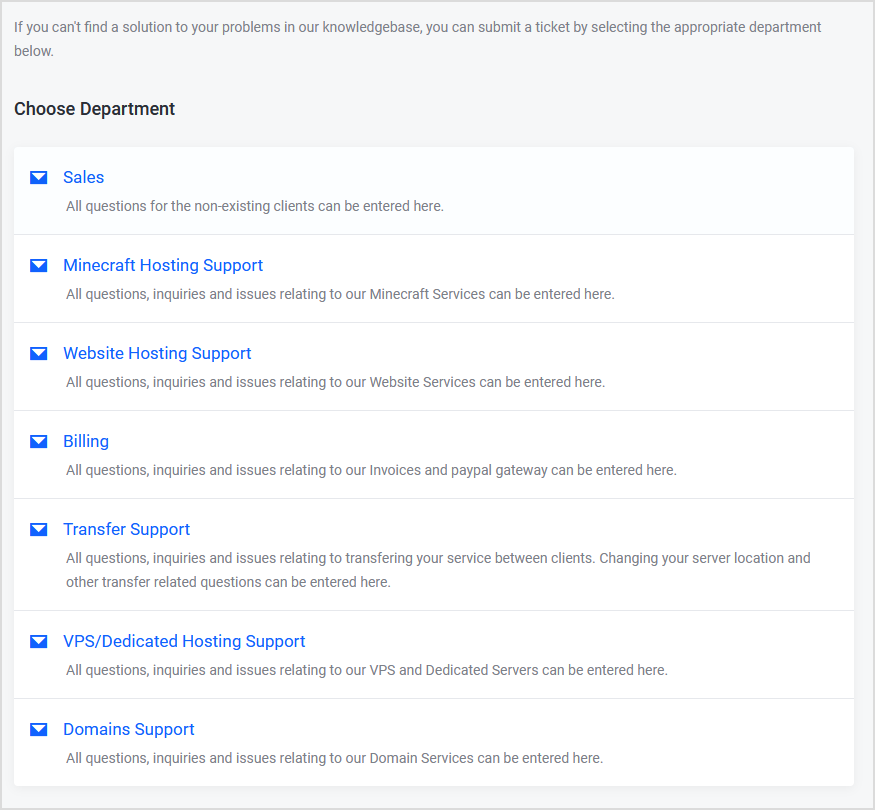
Select the **Department** that closely resembles the issue you are having.

[![image.png](https://knowledgebase.aquatis.host/uploads/images/gallery/2022-08/scaled-1680-/EWbTaPcTR7XFPgta-image.png)](https://knowledgebase.aquatis.host/uploads/images/gallery/2022-08/EWbTaPcTR7XFPgta-image.png)
##### Step 5  


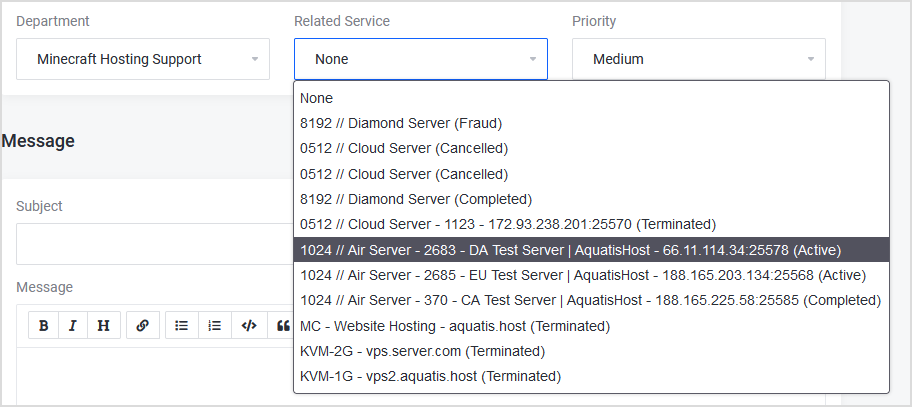
On the Ticket Information section on the top. Select the **Related Service** *if applicable*.

[![image.png](https://knowledgebase.aquatis.host/uploads/images/gallery/2022-08/scaled-1680-/bpT9oy4woW3tRp6v-image.png)](https://knowledgebase.aquatis.host/uploads/images/gallery/2022-08/bpT9oy4woW3tRp6v-image.png)
##### Step 6  


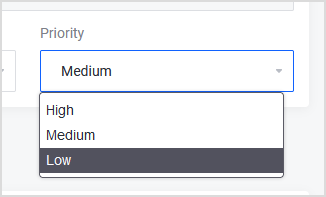
<label for="cancellationreason">Select the Priority of the ticket.  
</label>

[![image.png](https://knowledgebase.aquatis.host/uploads/images/gallery/2022-08/scaled-1680-/P23VWpdsVRUj30uk-image.png)](https://knowledgebase.aquatis.host/uploads/images/gallery/2022-08/P23VWpdsVRUj30uk-image.png)

<details id="bkmrk-low-priority-max-tic"><summary>Low Priority</summary>

- Max ticket response time of 24 Hours.
- Non-urgent ticket.
- Problem impacting product/service that's not impacting the end user's experience.
- Service is online/usable.

</details><details id="bkmrk-medium-priority-max-"><summary>Medium Priority</summary>

- Max ticket response time of 12 Hours.
- Semi-urgent ticket.
- Problem impacting product/service that is slightly impacting the end user's experience.
- Service is sick/mostly usable.

</details><details id="bkmrk-high-priority-max-ti"><summary>High Priority</summary>

- Max ticket response time of 4 Hours.
- Urgent ticket.
- Problem impacting product/service is ultimately impacting the end user's experience.
- Service is offline/unusable.

</details>##### Step 7  


Fill in the Subject, summarizing your message in under a sentence.

[![image.png](https://knowledgebase.aquatis.host/uploads/images/gallery/2022-08/scaled-1680-/PiMmk0jgei6aWCOm-image.png)](https://knowledgebase.aquatis.host/uploads/images/gallery/2022-08/PiMmk0jgei6aWCOm-image.png)

##### Step 8  


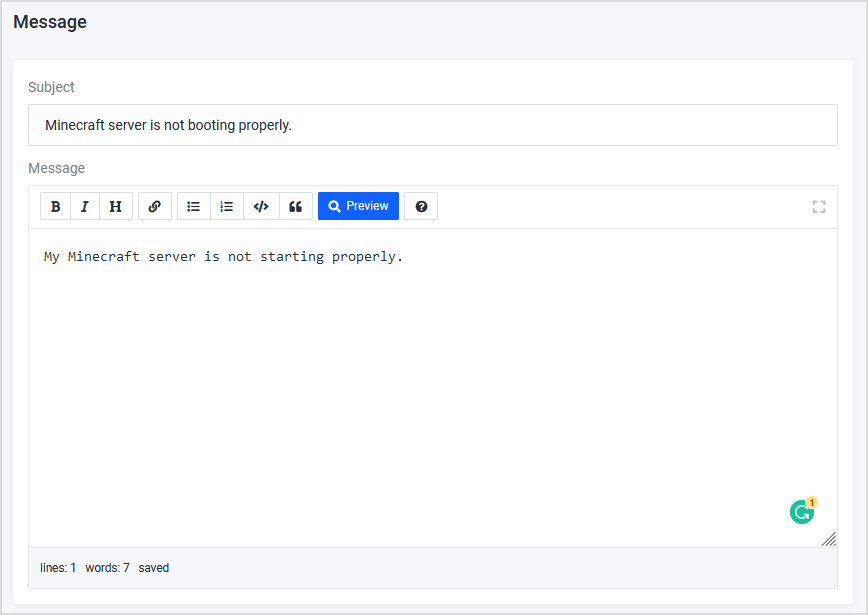
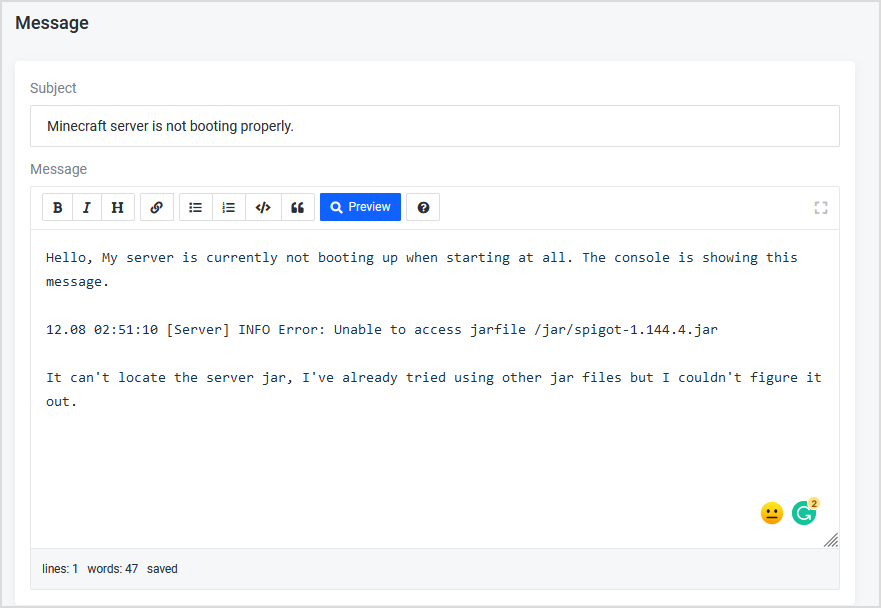
Fill in the Message, and attempt to much as much info as possible in the message box. The more information you put in, the fewer questions we have to ask which allows us to resolve your query faster.

<p class="callout warning">The less information you put in the message. The more time it would take for us to figure out what the problem is. Below is an example.</p>

[![image.png](https://knowledgebase.aquatis.host/uploads/images/gallery/2022-08/scaled-1680-/b8b2cOe7rH1oMXpl-image.png)](https://knowledgebase.aquatis.host/uploads/images/gallery/2022-08/b8b2cOe7rH1oMXpl-image.png)

<p class="callout success">The more information you put in, the less time it will take for us to resolve or help you with your issue! Below is a great example. This example allows us to know the problem instantly and work to resolve it!</p>

[![image.png](https://knowledgebase.aquatis.host/uploads/images/gallery/2022-08/scaled-1680-/vsbiJhNMSLNcXINx-image.png)](https://knowledgebase.aquatis.host/uploads/images/gallery/2022-08/vsbiJhNMSLNcXINx-image.png)

##### Step 9  


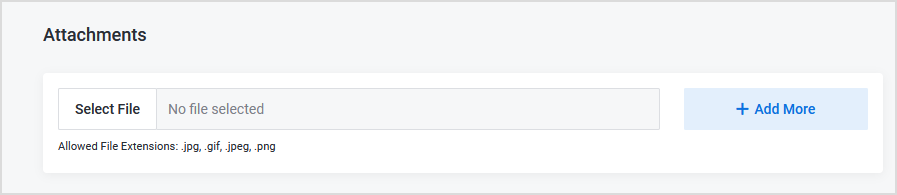
Attach Files, *if applicable.*

[![image.png](https://knowledgebase.aquatis.host/uploads/images/gallery/2022-08/scaled-1680-/RMv25S2quSFHmnF9-image.png)](https://knowledgebase.aquatis.host/uploads/images/gallery/2022-08/RMv25S2quSFHmnF9-image.png)
##### Step 10  


Submit the ticket, you will receive an email confirmation saying your ticket has been received with more information.

[![image.png](https://knowledgebase.aquatis.host/uploads/images/gallery/2022-08/scaled-1680-/prsLZHZ3PTGuhThl-image.png)](https://knowledgebase.aquatis.host/uploads/images/gallery/2022-08/prsLZHZ3PTGuhThl-image.png)

# How do I update my billing area password?

##### Step 1

Sign in to the [Billing Area](https://you.aquatis.host/clientarea.php).

[![image.png](https://knowledgebase.aquatis.host/uploads/images/gallery/2022-08/scaled-1680-/EeyFAS3q4cSDj5if-image.png)](https://knowledgebase.aquatis.host/uploads/images/gallery/2022-08/EeyFAS3q4cSDj5if-image.png)

##### Step 2  


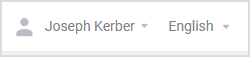
Select the **Dropdown** next to your name.

[![image.png](https://knowledgebase.aquatis.host/uploads/images/gallery/2022-08/scaled-1680-/v6zlqurg4ofSx15b-image.png)](https://knowledgebase.aquatis.host/uploads/images/gallery/2022-08/v6zlqurg4ofSx15b-image.png)
##### Step 3

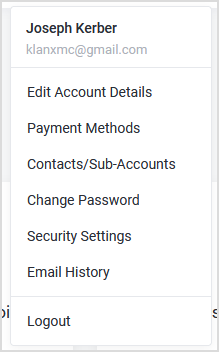
Select **Change Password**.

[![image.png](https://knowledgebase.aquatis.host/uploads/images/gallery/2022-08/scaled-1680-/0VBQa6OajXbYERZd-image.png)](https://knowledgebase.aquatis.host/uploads/images/gallery/2022-08/0VBQa6OajXbYERZd-image.png)
##### Step 4  


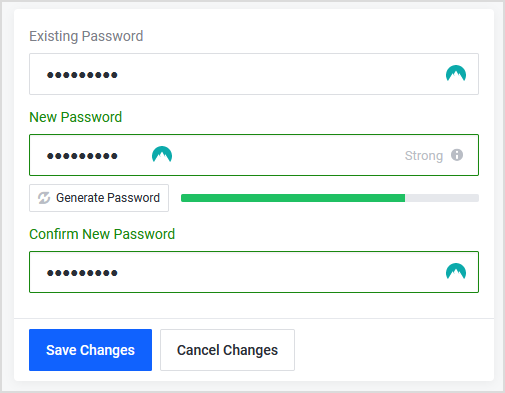
Type your **Existing** Password, then type your New Password. Finally, you would confirm your New Password.

[![image.png](https://knowledgebase.aquatis.host/uploads/images/gallery/2022-08/scaled-1680-/BaLLw4O0BdTr5aE4-image.png)](https://knowledgebase.aquatis.host/uploads/images/gallery/2022-08/BaLLw4O0BdTr5aE4-image.png)
##### Step 5  


Click **Save Changes**, to update your password.

[![image.png](https://knowledgebase.aquatis.host/uploads/images/gallery/2022-08/scaled-1680-/nNGj6bLoPZJ1aI3Y-image.png)](https://knowledgebase.aquatis.host/uploads/images/gallery/2022-08/nNGj6bLoPZJ1aI3Y-image.png)

# How do I get a refund?

We understand that sometimes, the product you receive is not what you fully expected. Maybe you had a change of mind about starting your new server, maybe some financial problems hit, and you are no longer able to pay for the service. Not to worry, we have a process on how you can get a refund.

##### Product Eligibility

The first thing we want to check is if your product qualifies for our refund policy. Below are the products that are/aren't eligible for a refund.

<p class="callout danger">Ineligible Products</p>

- Domain Names
- Account Credit

<p class="callout success">Eligible Products</p>

- Minecraft Servers (Initial Payment)
- Minecraft Servers (Renewal Payment)
- Dedicated Servers
- Virtual Private Servers
- Website Hosting

##### Refund Policy Eligibility

Now that we identified that you have a product you can request a refund for, you would have to verify if you are within the 72-hour refund period. Please note, after your first month of Minecraft hosting, if you decide you wanted to cancel it on the 13th but accidentally paid for another month for it, you have until the 16th to request a refund.

##### Opening a Ticket

If you are eligible for everything above. You would open a ticket to our [Billing Area](https://you.aquatis.host/clientarea.php) and request a refund there!

# How do I change the invoice payment method?

##### Step 1  


Sign in to the [Billing Area](https://you.aquatis.host/clientarea.php).

[![image.png](https://knowledgebase.aquatis.host/uploads/images/gallery/2022-08/scaled-1680-/EeyFAS3q4cSDj5if-image.png)](https://knowledgebase.aquatis.host/uploads/images/gallery/2022-08/EeyFAS3q4cSDj5if-image.png)

##### Step 2  


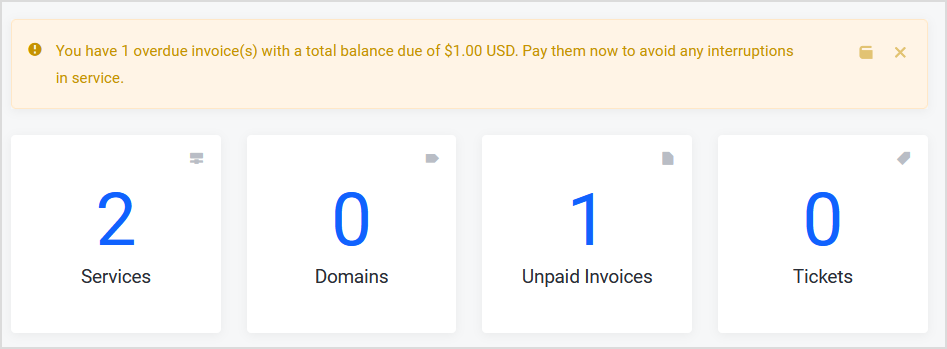
Select the **Unpaid Invoices** section in the middle of the screen.

[![image.png](https://knowledgebase.aquatis.host/uploads/images/gallery/2022-09/scaled-1680-/07AFypACho9zJ8py-image.png)](https://knowledgebase.aquatis.host/uploads/images/gallery/2022-09/07AFypACho9zJ8py-image.png)
##### Step 3

**Select** the invoice that is currently unpaid.

[![image.png](https://knowledgebase.aquatis.host/uploads/images/gallery/2022-09/scaled-1680-/MWrLTzTknbmSvEys-image.png)](https://knowledgebase.aquatis.host/uploads/images/gallery/2022-09/MWrLTzTknbmSvEys-image.png)

##### Step 4  


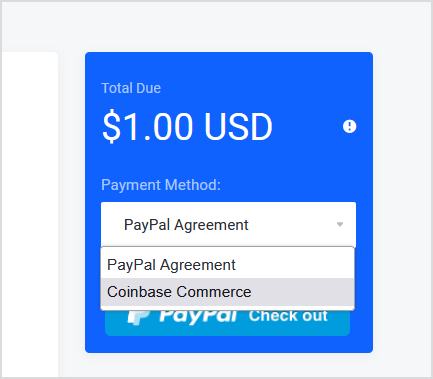
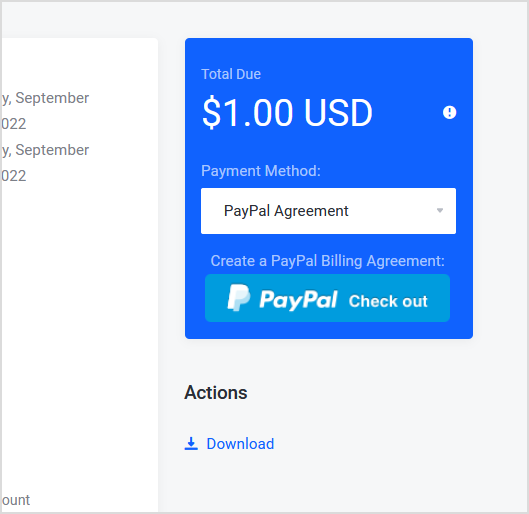
On the **right-hand** side of the invoice, you can currently see the Payment method is currently set to Paypal Agreement on the drop down. To switch it, select the PayPal agreement dropdown.

[![image.png](https://knowledgebase.aquatis.host/uploads/images/gallery/2022-09/scaled-1680-/WSLdFV3cWJOfe89w-image.png)](https://knowledgebase.aquatis.host/uploads/images/gallery/2022-09/WSLdFV3cWJOfe89w-image.png)
##### Step 5  


Select the **Payment Method** you wish to use. After that, the invoice would update the payment method.

[![image.png](https://knowledgebase.aquatis.host/uploads/images/gallery/2022-09/scaled-1680-/T3zBpOJPbYNBrArS-image.png)](https://knowledgebase.aquatis.host/uploads/images/gallery/2022-09/T3zBpOJPbYNBrArS-image.png)